Legion Go S Dock: Do You Need One for a TV or Monitor? (2026)
You don’t need a Legion Go S dock to play on a TV or a monitor. Both USB‑C ports on the Go S output video and accept a charger, so a USB‑C to HDMI adapter in one port and the charger in the other do the job for about $20. A dock adds a stand and USB ports, and most add Ethernet; they start at $21.99 at JSAUX, and Lenovo’s own is $38 on sale. And if you own an iPad, TypeScreen makes it the big screen, with no dock and no TV.
| Way | What to buy | What you connect | Cost | Works away from home |
|---|---|---|---|---|
| TypeScreen with your iPad | nothing | the iPad and one USB‑C cable | free | yes |
| USB‑C to HDMI adapter | the adapter | the adapter, an HDMI cable and the charger | $19.99 (Plugable) | only where there’s a TV or monitor |
| Lenovo Legion Go USB‑C Dock | the dock | the dock, the charger and an HDMI cable | $38 on sale ($64.99) | only where there’s a TV or monitor |
| JSAUX dock | the dock | the dock, the charger and an HDMI cable | $21.99–55.99 | only where there’s a TV or monitor |
| Monitor with a USB‑C input | the monitor, if you don’t have one | the monitor and one USB‑C cable | the monitor | only a portable one |
US prices as of October 2026, from the Plugable, Lenovo and JSAUX stores.
Does the Legion Go S need a dock?
No. The Go S has two USB‑C ports, and Lenovo’s specs for the Z2 Go and Z1 Extreme models give both ports the same features: USB4 at 40 Gbps, DisplayPort 1.4 video and 65–100 W charging. Either port can drive a TV, and either one can charge the Go S. A Steam Deck, with a single USB‑C port, needs a hub or dock to charge while it plays on a TV; the Go S doesn’t.
A Legion Go S dock still makes sense if you want:
- Ethernet. The Go S has no Ethernet port. A dock gives it a wired connection to your router for downloads and online games, and Valve’s Steam Deck docking guide, which applies to SteamOS on the Go S too, notes that a wired connection through the dock can also improve Bluetooth.
- USB ports for a keyboard, a mouse or a controller’s wireless receiver.
- A stand that holds the Go S upright next to the TV or monitor.
- One plug. The TV, the charger and the network stay connected to the dock, and the Go S connects with one cable.
How to connect Legion Go S to a TV without a dock
The Go S has no HDMI port. Video goes out over USB‑C, so you need a USB‑C to HDMI adapter or cable that supports DisplayPort Alt Mode or USB4. For example, Plugable’s USB‑C to HDMI 2.0 adapter is $19.99 and outputs up to 4K at 60 Hz, and Lenovo lists its own USB‑C to HDMI 2.0b Adapter as compatible with the Go S.
- Plug the adapter into one USB‑C port on the Go S and connect it to the TV with an HDMI cable.
- Plug the charger into the other USB‑C port.
- Switch the TV to that HDMI input.
- Wake the Go S: the picture appears on the TV.
The charger plugs straight into the Go S, so there’s no dock in between taking a share of its power.
Legion Go S on a TV in SteamOS
In Game Mode, the picture moves to the TV and the Go S screen goes black. Valve’s docking guide says that’s expected: both screens work at once only in Desktop Mode. With the TV connected, Settings > Display lets you change the resolution and refresh rate. If the picture doesn’t fit the TV, turn off Automatically Scale User Interface there and adjust the slider. If the TV stays black, unplug the adapter, turn on External Display Safe Mode in the same menu and plug it back in. Valve also suggests switching the TV to its gaming picture mode and turning off motion smoothing. More black-screen fixes, written for the Steam Deck but in the same SteamOS menus: how to connect Steam Deck to a monitor or TV.
Legion Go S on a TV in Windows
Windows treats the TV as a second display. With a keyboard, press Windows + P and pick Duplicate to show the same picture on both screens or Second screen only to turn the Go S screen off (Microsoft). Without one, open Start > Settings > System > Display: with the TV connected, the same choice is in the drop-down there.
Play from the couch with a controller
With the Go S next to the TV, a wireless controller lets you play from the couch; the Go S has Bluetooth 5.3. Put the controller in pairing mode, then pair it in Settings > Bluetooth on SteamOS (Valve) or from Bluetooth in Quick Settings on Windows (Microsoft). Valve’s tips: give the controller a clear line of sight to the console, don’t hide the console behind the TV or in a cabinet, and keep USB 3 drives away from it.
Downsides:
- Two cables hang off the Go S: one to the TV, one to the charger.
- You play where the TV is, and only when it’s free.
- On the couch, you need a separate wireless controller.
Best dock for Legion Go S: Lenovo vs JSAUX
Lenovo’s own Legion Go S dock is the Legion Go USB‑C Dock, the same one it sells for its other Legion Go handhelds. JSAUX lists the Go S for several of its docks:
| Dock | Price | Video | Ethernet | USB ports | Charging |
|---|---|---|---|---|---|
| Lenovo Legion Go USB‑C Dock | $38 on sale ($64.99) | HDMI 2.0: 4K at 60 Hz or 2K at 120 Hz | Gigabit | 2 USB‑A, 1 USB‑C | passes 45 W from a 65 W charger, 65 W from a 90 W or bigger one |
| JSAUX 4‑in‑1 (HB0503) | $21.99 | HDMI 2.0: 4K at 60 Hz or 2K at 120 Hz | no | 2 USB‑A 2.0 | input up to 100 W |
| JSAUX 6‑in‑1 Multifunctional (HB0609) | $39.99 ($45.99) | HDMI 2.1: 4K at 120 Hz | Gigabit | 2 USB‑A, 1 USB‑C | input up to 100 W |
| JSAUX 7‑in‑1 RGB Cooling (HB0705) | $55.99 ($59.99) | HDMI 2.1: 4K at 120 Hz | Gigabit | 2 USB‑A, 1 USB‑C, plus a fan | input up to 100 W |
US prices as of October 2026; specs from Lenovo’s PSREF and JSAUX’s product pages. USB ports on all but the 4‑in‑1 run at 5 Gbps.
What to look for in a Legion Go S docking station
- The Go S on the compatibility list, as with the four docks above.
- HDMI version. HDMI 2.0 docks output 4K at 60 Hz or 2K at 120 Hz; HDMI 2.1 docks reach 4K at 120 Hz. For 1080p or 2K at up to 120 Hz, either is fine.
- Charging power. The Go S takes 65–100 W over USB‑C. Some docks keep part of the charger’s power for their own ports, as Valve’s docking guide warns, so check how much reaches the console: Lenovo’s dock passes 45 W from a 65 W charger.
- Ethernet, if your Wi‑Fi is weak where the TV is.
Lenovo Legion Go USB‑C Dock
Lenovo’s Legion Go USB‑C Dock is the official option: Lenovo’s SmartFind lists it for the Legion Go S, the original Legion Go and the Legion Go 2. It has HDMI 2.0, Gigabit Ethernet, two USB‑A ports, one USB‑C port and a USB‑C power input. It was $38 on sale, down from $64.99, in Lenovo’s US store in October 2026.
Downsides:
- With a 65 W charger, it passes only 45 W to the Go S; 65 W takes a 90 W or bigger charger.
- No charger in the box.
- HDMI 2.0 stops at 4K at 60 Hz.
JSAUX docks
The 6‑in‑1 Multifunctional Docking Station (HB0609) has the same ports as Lenovo’s dock, with HDMI 2.1 instead of 2.0 and a charging input rated for 100 W, and it comes with a silicone pad that JSAUX recommends for the Go S. The 4‑in‑1 (HB0503) costs $21.99 and drops Ethernet. The 7‑in‑1 RGB Cooling Docking Station (HB0705) adds lighting and a magnetic fan, but JSAUX says the fan is shaped for the ROG Ally’s air intake and may cool other handhelds less.
Downsides:
- No charger in the box: a set with JSAUX’s 65 W charger costs $20 more.
- The $21.99 4‑in‑1 has no Ethernet, and its USB ports are USB 2.0.
- The 7‑in‑1’s fan is shaped for the ROG Ally and may cool the Go S less, JSAUX says.
Connect Legion Go S to an external monitor
A monitor with HDMI connects the same way as a TV, through an adapter or a dock. A monitor with a USB‑C input that accepts DisplayPort Alt Mode needs just a USB‑C cable that carries video. Lenovo rates the Go S for 65–100 W of charging, so a monitor that delivers 65 W or more over USB‑C can charge it through the same cable. On Windows, Extend spreads the desktop across the monitor and the Go S screen; SteamOS Game Mode uses one screen at a time.
Portable monitors work too. They’re usually 15 to 16 inches and fit in a bag. Some run on the console’s power (each Go S port supplies up to 15 W, according to Lenovo), and others need their own adapter. If you already own an iPad, compare first: iPad vs portable monitor.
Downsides:
- A desk monitor stays on the desk.
- A portable monitor is one more device to buy and carry, and some need their own power adapter.
Use your iPad as a Legion Go S monitor
TypeScreen, our app, turns your iPad into a wired screen for the Legion Go S with SteamOS: the Go S encodes the picture in hardware and sends it to the iPad over one USB‑C cable, the same cable you charge the iPad with. You play with the Go S’s own controls, and its second USB‑C port stays free for the charger.
The game keeps the Go S’s 16:10 shape, with thin bars at the top and bottom of the iPad screen, and a pinch fills the whole screen. On an 11‑inch iPad, the picture is about 1.7 times the area of the Go S screen; on a 13‑inch iPad, about 2.3 times. Legion Go S screen size compares the screens to scale.
What you need: an iPad with iPadOS 17 or later, a Legion Go S with SteamOS in Game Mode, and a USB‑C cable. If your Go S came with Windows, Lenovo publishes a SteamOS image for it.
How to set it up:
- Install TypeScreen on the iPad. It’s free on the App Store.
- Install TypeScreen on the Go S from the iPad app — once, at home, with both devices on Wi‑Fi and the Go S online. The app walks you through turning on Developer Mode and selecting “Pair new host”.
- Connect the cable and tap Trust on the iPad. In Game Mode, your game appears on the iPad automatically.
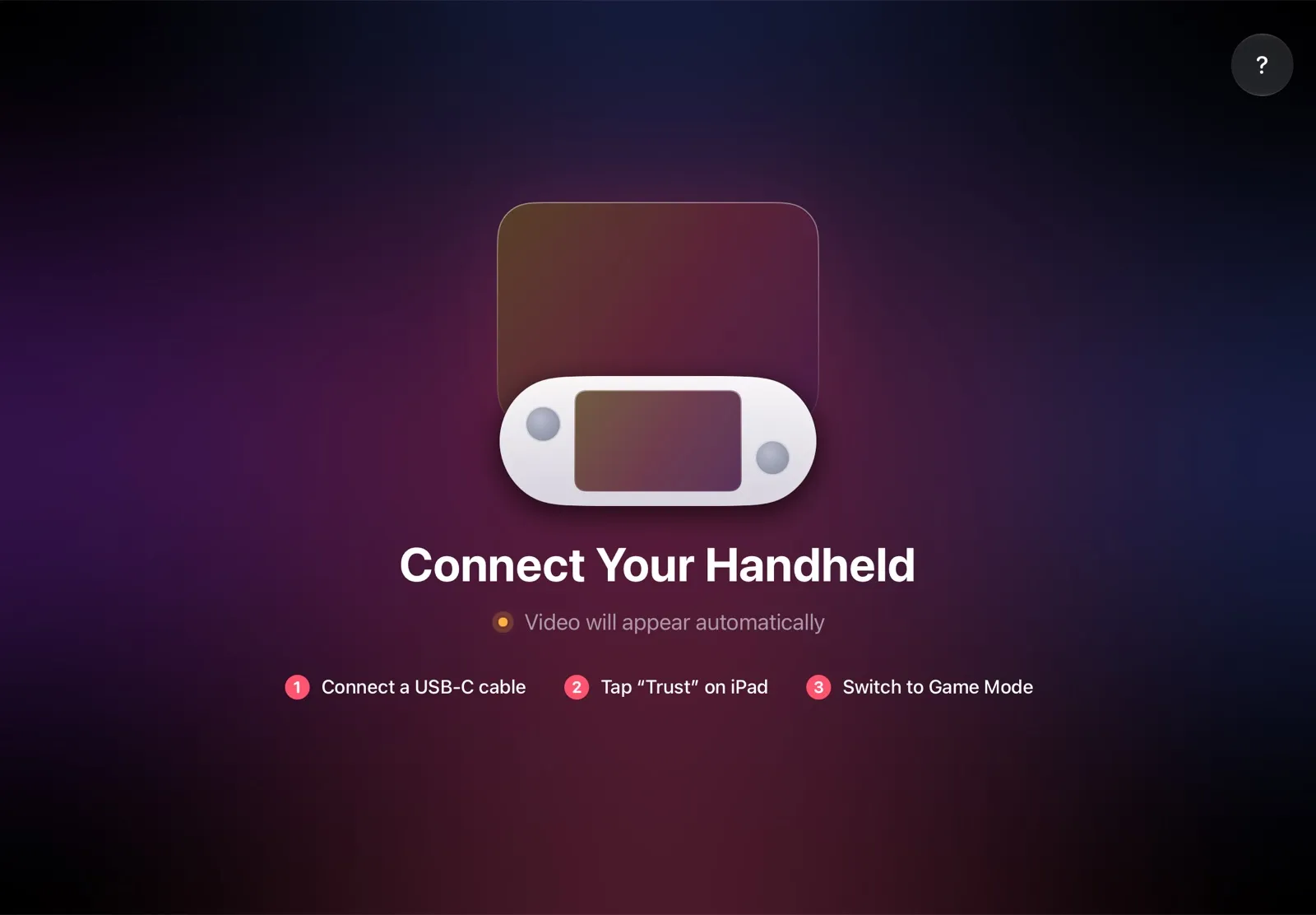
The installation guide has every step. TypeScreen works the same way on a Steam Deck, and iPad as a monitor for Steam Deck compares the other ways to use an iPad as the screen.
Why it’s the simplest way:
- Nothing to buy. The app is free, and the cable is the one you already have: no dock, no adapter, no HDMI cable.
- The big screen goes with you. The iPad fits in the same bag as the Go S, so you can play at a desk, in a hotel or on a train.
- One cable, no network. The picture goes over the cable, so you don’t need Wi‑Fi while you play, and a slow or busy network can’t add delay.
- Made for your devices. The Go S detects the iPad’s display and picks the resolution and frame rate for it.
Which should you use?
- You own an 11‑ or 13‑inch iPad: TypeScreen — a bigger screen with nothing to buy, at home or away.
- You play on a TV now and then: a USB‑C to HDMI adapter in one port and the charger in the other.
- The Go S lives by the TV or on a desk: a dock with Ethernet, such as JSAUX’s 6‑in‑1 or Lenovo’s own.
- You have a monitor with a USB‑C input: one USB‑C cable, no dock.
FAQ
Can you dock the Legion Go S?
Yes. Lenovo lists its Legion Go USB‑C Dock as compatible with the Go S, and JSAUX lists the Go S for several of its docks. A dock works from either USB‑C port.
What is the best dock for the Legion Go S?
The best Legion Go S dock depends on what you connect. JSAUX’s 6‑in‑1 ($39.99) has HDMI 2.1 and Gigabit Ethernet; Lenovo’s Legion Go USB‑C Dock ($38 on sale) has HDMI 2.0 and Gigabit Ethernet, and passes 65 W to the Go S only from a 90 W or bigger charger (45 W from a 65 W one). If all you want is the TV, a $20 USB‑C to HDMI adapter is enough.
Does the Legion Go S come with a dock?
No, docks are sold separately. Lenovo’s Legion Go USB‑C Dock was $38 on sale, down from $64.99, in Lenovo’s US store in October 2026.
Does the Legion Go S have HDMI?
No. Video goes out through its two USB‑C ports (DisplayPort 1.4), so an HDMI TV or monitor needs a USB‑C to HDMI adapter or a dock.
Which Legion Go S port do I use for a TV?
Either one. Both USB‑C ports output video and accept charging, so use one for the TV and the other for the charger.
Can the Legion Go S use an external monitor?
Yes: an HDMI monitor through an adapter or a dock, or a USB‑C monitor with one cable. In SteamOS Game Mode, the Go S screen turns off while the monitor is connected; Windows can extend the desktop across both.
Can I use my iPad as a Legion Go S monitor?
Yes. With TypeScreen, one USB‑C cable connects a Go S with SteamOS to an iPad with iPadOS 17 or later, with no dock or adapter. The app is free on the App Store.