
iPad as a Monitor for Steam Deck: 4 Ways That Work (2026)
Using an iPad as a monitor for Steam Deck gets you a screen that’s bigger and sharper than the Deck’s own — and you probably already own it. Can you use an iPad as a monitor for Steam Deck by plugging in a cable? Not by itself: something has to carry the picture into the iPad. In 2026 there are four ways to do that. Here’s what each one needs, what it costs, and how to set it up.
| Way | What else you need | Network | Cost |
|---|---|---|---|
| TypeScreen | nothing | none while you play | free |
| Capture card | hub, capture card, HDMI cable | none | about $50–240 |
| Steam Link | nothing | Wi‑Fi or Ethernet, and the lag depends on it | free |
| Moonlight | Decky plugins on the Deck | Wi‑Fi or Ethernet, and the lag depends on it | free |
Hardware prices are US prices as of October 2026.
Can you use an iPad as a monitor for Steam Deck?
Yes, but not the way a regular monitor works. The Steam Deck’s USB‑C port sends video out with DisplayPort 1.4 Alt Mode, and the iPad’s USB‑C port is built to send video out too — Apple describes it as a way to connect external displays. Two video outputs don’t make a picture.
What an iPad can take in is a USB camera: since iPadOS 17, apps can use external UVC cameras. So every way to use an iPad as a Steam Deck screen either feeds it through a camera-like capture card, streams the game to an app, or sends the picture as data over USB — the way TypeScreen does.
1. Use iPad as a Steam Deck monitor with a capture card
A capture card turns the Deck’s HDMI output into a USB camera feed, and an iPad app shows it full screen.
What you need:
- an iPad with USB‑C and iPadOS 17 or later;
- a USB‑C hub or dock with HDMI for the Deck — about $35, or $79 for the Valve dock;
- an HDMI capture card that works as a UVC device — from about $15 to $160;
- an HDMI cable;
- a viewer app: Orion, Genki Studio or Elgato Capture.
How to set it up: connect the hub to the Deck, HDMI from the hub to the capture card, and the card to the iPad. Open the viewer app and allow camera access — to iPadOS, the card is a camera.
Downsides: that’s four extra parts to buy and carry. The hub takes the Deck’s only USB‑C port, so charging while you play needs a hub with power passthrough. Most capture cards send 1080p, and the iPad screen isn’t 16:9, so expect black bars or zooming. Looking for an Orion app alternative without the extra parts? That’s way 4.
2. Stream Steam Deck to iPad with Steam Link
Steam Link is Valve’s free streaming app. The Deck can act as the Remote Play host — Valve’s SteamOS release notes refer to “Steam Deck as the Remote Play host” — and the Steam Link app on the iPad plays the stream.
How to set it up: enable Remote Play on the Deck, open Steam Link on the iPad, find the Deck and pair.
Downsides: it streams over a network — usually your home network, or the internet when you’re away — and the delay depends on it. In our own tests the lag on an ordinary home Wi‑Fi was very noticeable, and keeping it low takes a very fast, stable network: Valve recommends 5 GHz Wi‑Fi for the iPad and a wired connection for the host. Without a network there’s no game at all — a hotel, a train or a plane is a problem. No Wi‑Fi? See Steam Link without Wi‑Fi.
3. Moonlight and Sunshine
Moonlight is a free, open-source streaming client; Sunshine is the server on the Deck. On SteamOS it’s usually installed with the Decky Sunshine plugin, which needs the Decky Loader plugin system first.
How to set it up: install Decky Loader, add Decky Sunshine and turn Sunshine on in Game Mode. Then add the Deck in Moonlight on the iPad and enter the PIN Moonlight shows in the plugin.
Downsides: this is the most hands-on option. Decky Sunshine runs Sunshine with root rights, and in September 2026 the plugin had open reports of black screens and failed starts after Sunshine updates. And like Steam Link, it streams over a network: the lag was very noticeable in our tests too, and Moonlight’s guide strongly recommends 5 GHz Wi‑Fi 5 or Wi‑Fi 6 to keep it down.
4. iPad as an external monitor for Steam Deck over one USB‑C cable
TypeScreen is our app, made for exactly this. It turns an iPad into a wired screen for Steam Deck and other SteamOS handhelds: the handheld encodes the picture in hardware and sends it to the iPad over the same USB‑C cable you charge the iPad with. No capture card, no hub, no network while you play.
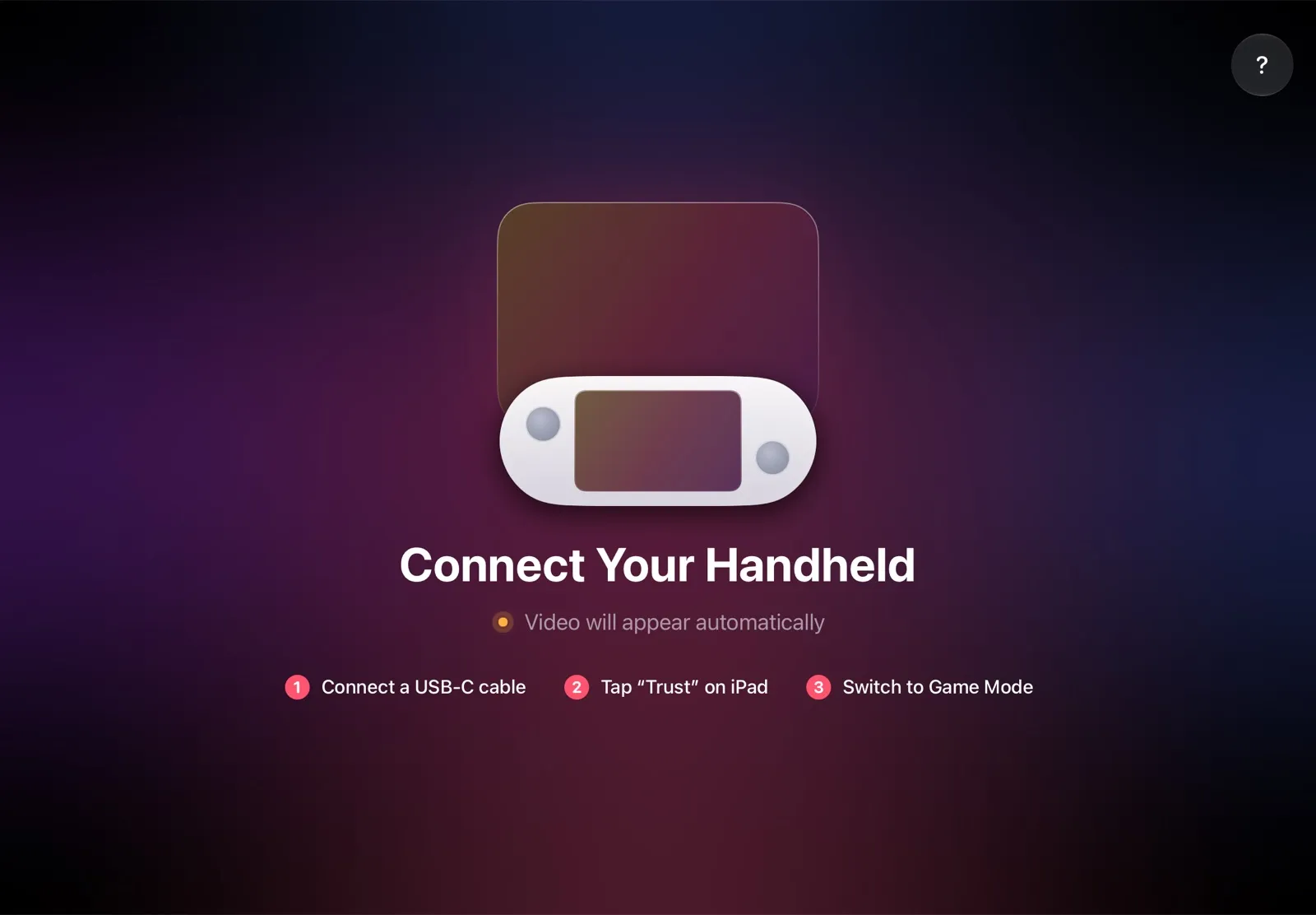
What you need: an iPad with iPadOS 17 or later, a Steam Deck or another SteamOS handheld in Game Mode, and a USB‑C cable.
How to set it up:
- Install TypeScreen on the iPad. It’s free and coming soon to the App Store.
- Install TypeScreen on the handheld from the iPad app — once. The app walks you through turning on Developer Mode and selecting “Pair new host”; this step uses your Wi‑Fi.
- Connect the cable and tap Trust on the iPad. In Game Mode, your game appears on the iPad automatically.
From then on, it’s just the cable: plug in and play. The installation guide has every step, and How to Connect Steam Deck to iPad With a USB‑C Cable explains what the cable does.
Why it’s the simplest way:
- Nothing to buy. The app is free, and the cable is the one you already have.
- Nothing to set up each time. No network, no pairing, no hub — connect the cable, and the game is on the iPad.
- No Wi‑Fi lag. The picture goes over the cable, so a slow or busy network can’t add delay.
- Works anywhere. No Wi‑Fi needed while you play: at home, in a hotel, on a train.
- Made for your devices. The handheld detects the iPad’s display and picks the resolution and frame rate for it, and a pinch fills the whole iPad screen.
Which way should you use?
- The simplest setup, at home or on the road: TypeScreen — one cable, nothing else.
- You already own a capture card: use it with Orion or Genki Studio.
- You’re at home on fast 5 GHz Wi‑Fi: Steam Link works without extra hardware.
- You like tuning stream settings and already use Decky: Moonlight and Sunshine.
Don’t have an iPad yet? A portable monitor is the other way to get a bigger screen — see iPad vs portable monitor for Steam Deck. For a TV or a desk monitor, here’s how to connect Steam Deck to a monitor or TV.
FAQ
Can I use my iPad as a second monitor for Steam Deck?
Yes, as a bigger screen for your games: the iPad shows what the Deck shows. With TypeScreen it takes one USB‑C cable; the other ways need a capture card or a Wi‑Fi stream.
Can I use an iPad Pro as a monitor for Steam Deck?
Yes. iPad Pro, iPad Air, iPad mini and iPad all work with TypeScreen on iPadOS 17 or later, and the big iPad Pro screen is a great fit. For a capture card, the iPad needs a USB‑C port.
Will an older iPad work, and which cable do I need?
Any iPad with iPadOS 17 or later works with TypeScreen, including models with a Lightning port. For an iPad with USB‑C, use a USB‑C to USB‑C cable — the one that came with your iPad works; for an iPad with Lightning, use a USB‑C to Lightning cable.
Can I connect a Steam Deck to an iPad with just a USB‑C cable?
Yes, with TypeScreen installed on both devices — it sends the picture over the cable. Without an app, a cable alone shows nothing, because both ports only output video.
Do I need Wi‑Fi to use an iPad as a Steam Deck screen?
With TypeScreen or a capture card, no: the picture goes over the cable. Steam Link and Moonlight stream over a network — usually the same Wi‑Fi, or Ethernet adapters — and their delay depends on how fast and stable that network is.
Can I mirror my Steam Deck to my iPad?
Steam Deck has no built-in screen mirroring or AirPlay. To show its screen on an iPad, connect them with a USB‑C cable and TypeScreen, or stream with Steam Link or Moonlight over your local network.
Can I play Steam games on an iPad?
Yes. The game runs on your Steam Deck, and the iPad becomes its screen: with TypeScreen over one USB‑C cable, or with Steam Link or Moonlight over your local network.
Does Duet Display work with Steam Deck?
Not on SteamOS. Duet Display’s computer app is listed for Mac and Windows only, and SteamOS — the system a Steam Deck ships with — isn’t on that list. To use an iPad as a Steam Deck screen, use TypeScreen over one USB‑C cable — more in Duet Display for Steam Deck.
Is it free?
TypeScreen, Steam Link and Moonlight are free apps. The capture card way costs about $50–240 in parts.