
How to Connect Steam Deck to a Monitor or TV (2026)
Want to connect Steam Deck to a monitor or a TV and play on a bigger screen? The Deck is built for it: its USB‑C port sends video out, so a cable or an adapter is usually all it takes — and if you own an iPad, you may not need a monitor at all. Here are all the ways to connect, what each one needs, and what to do when the screen stays black.
| Way | What you need | Extra cost |
|---|---|---|
| iPad with TypeScreen | the iPad you own and a USB‑C cable | free |
| Monitor or TV with HDMI | a USB‑C to HDMI adapter, or a hub or dock | hub from about $35, Valve dock $79 |
| Monitor with USB‑C input | a USB‑C cable that carries video | the monitor itself — portable ones about $130–240 |
| Steam Link on a TV | the free app on Apple TV, Android TV or Fire TV, plus a local network | free |
Prices are US prices as of October 2026.
Can you connect a Steam Deck to a monitor?
Yes. The Steam Deck’s USB‑C port supports DisplayPort 1.4 Alt Mode — up to 4K at 120 Hz or 8K at 60 Hz, according to Valve. That’s what the port can output, not the resolution games run at. Game sound goes out over the same connection, so a monitor or TV with speakers plays it. The Deck has only one USB‑C port, though: whatever you plug in takes the charging port too.
Connect Steam Deck to a TV or monitor with HDMI
Most TVs and monitors have HDMI. Two ways to get there from the Deck’s USB‑C port:
- A USB‑C to HDMI adapter or cable. The simplest way to connect Steam Deck to a monitor without a dock. Choose one that says it supports DisplayPort Alt Mode.
- A hub or dock. It adds HDMI plus USB ports and a USB‑C power input, so the Deck charges while you play. Valve’s own Steam Deck Dock ($79) has HDMI 2.0 and DisplayPort 1.4 — up to 4K at 60 Hz or 1440p at 120 Hz — plus Ethernet; third-party hubs start around $35.
Step by step:
- Plug the adapter, hub or dock into the Deck’s USB‑C port. With a hub or dock, connect its power supply too, so the Deck charges while you play.
- Connect it to the TV or monitor with HDMI.
- Switch the TV or monitor to that HDMI input.
- Wake the Deck: the picture appears on the big screen.
Downsides: an adapter alone leaves the Deck on battery, and a dock is one more box with its own power brick.
Connect Steam Deck to a monitor with USB‑C
A monitor with a USB‑C video input — common on portable monitors — needs just one USB‑C cable that carries video. Some of them run on the Deck’s power alone; others need their own power supply. Plugable, for example, says its 15.6‑inch monitor works with the Steam Deck but “requires an external power connection”. More in iPad vs portable monitor for Steam Deck.
Downsides: it’s a monitor to buy and carry, and a charging-only cable won’t show a picture.
Use your iPad as the big screen
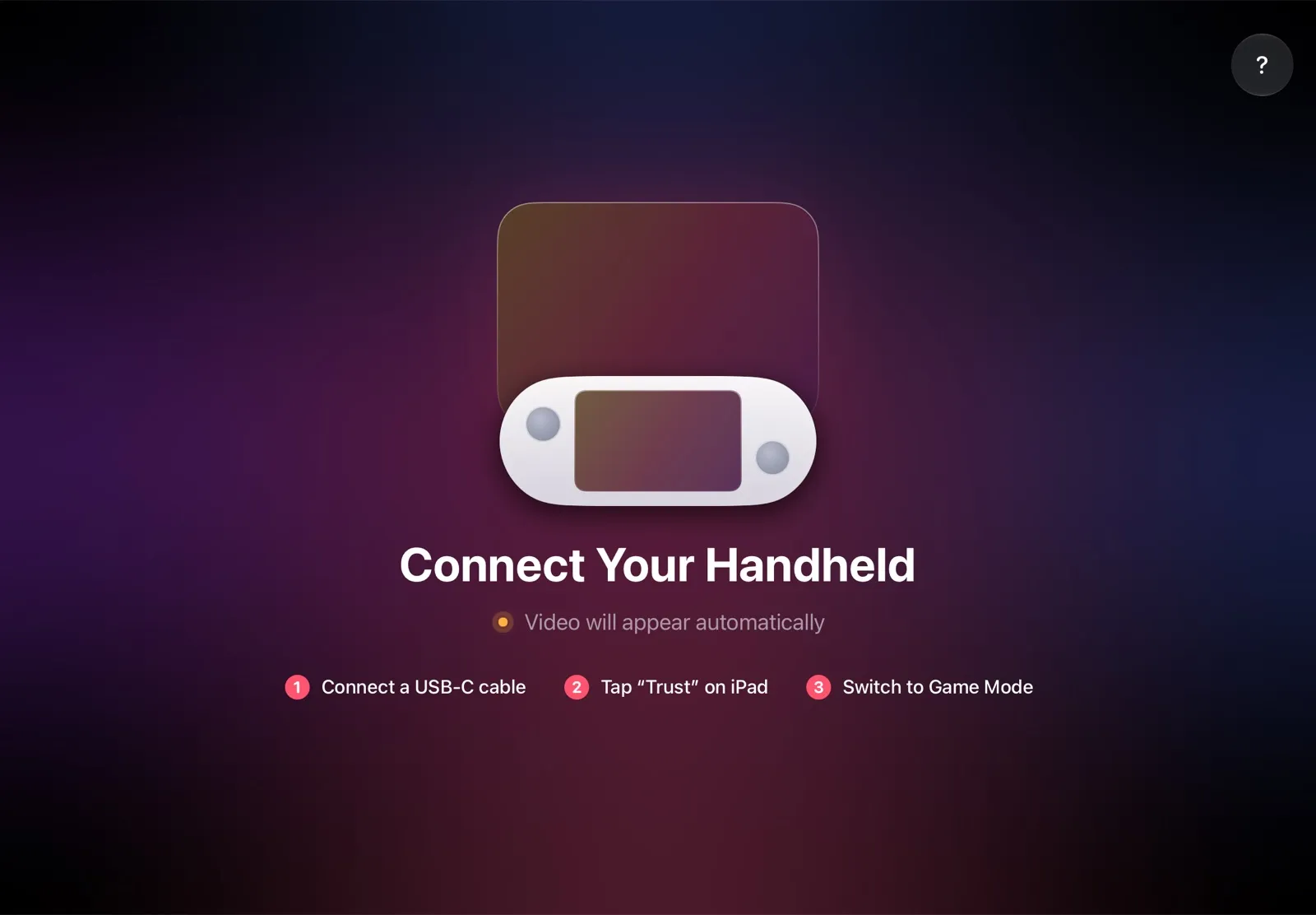
If there’s an iPad at home, it can be your Steam Deck’s big screen. An iPad has no video input, so a cable alone shows nothing — but with TypeScreen, the same USB‑C cable you charge the iPad with is enough. The Deck encodes the picture in hardware and sends it over the cable; the iPad shows your game full screen.
Why it’s the easiest big screen:
- Nothing to buy. The app is free, and you already have the iPad and the cable.
- No adapters, no dock, no Wi‑Fi. One USB‑C cable between the Deck and the iPad.
- Plug in and play. Set it up once; after that, the game appears on the iPad as soon as you connect the cable in Game Mode.
- Works anywhere. Home, hotel, train — the screen comes with you.
How to set it up: install TypeScreen on the iPad (free, coming soon to the App Store), install it on the Deck from the iPad app once, then connect the cable and tap Trust. The installation guide has every step, how to connect Steam Deck to iPad explains what the cable does, and iPad as a Monitor for Steam Deck compares all the ways to use an iPad as a screen.
Connect Steam Deck to a TV wirelessly with Steam Link
Steam Link is Valve’s free streaming app, and it runs on Apple TV, Android TV and Amazon Fire TV. The Deck acts as the Remote Play host and streams the game over your home network: open Steam Link on the TV and pair it with the Deck.
Downsides: it streams over your network, and the delay depends on it — in our tests the lag on an ordinary home Wi‑Fi was very noticeable, and keeping it low takes a very fast, stable network.
Steam Deck monitor not working? Try this
- Check the cable or adapter. Charging-only and basic USB 2.0 cables don’t carry video; adapters must support DisplayPort Alt Mode.
- Power the monitor if it has its own power input — some won’t light up on the Deck’s power alone.
- Switch the TV input to the HDMI port you’re using.
- Update SteamOS. Valve keeps fixing external displays: SteamOS 3.6.19 updated the dock firmware, fixing several issues where displays could stay blank.
- Try External Display Safe Mode in the Deck’s Display settings if the screen stays black in Game Mode.
- Wrong resolution? With the monitor connected, pick another one in the Deck’s Display settings.
FAQ
How do I connect my Steam Deck to a TV without a dock?
Use a USB‑C to HDMI adapter or cable that supports DisplayPort Alt Mode, and switch the TV to that HDMI input. Without a dock, the Deck runs on battery while you play.
Can I connect a Steam Deck to a monitor with USB‑C?
Yes, if the monitor has a USB‑C video input. Use a cable that carries video, and check whether the monitor needs its own power.
What’s the easiest big screen for a Steam Deck?
If you own an iPad, it’s already in the house: with TypeScreen, one USB‑C cable turns it into the Deck’s screen, with nothing else to buy.