
Use Your iPad as a Big Screen for Steam Deck
Connect your handheld to iPad with one USB‑C cable and play on the big screen. Controls and audio stay on your handheld.

- Free
- No capture card
- iPadOS 17 or later
- Any SteamOS handheld

Everything Goes Over One Cable
No capture card, dock, or network setup.
No Capture Card
A regular USB‑C cable, like the one you charge your iPad with. No dock or HDMI.
Smooth Picture
Dedicated video chips in your handheld and iPad compress and show the picture, just like when they record and play videos. The processor stays free for your game.
Fitted to Your iPad
Your handheld recognizes the iPad screen and picks the picture size and frame rate for it.
Your Controls, Your Audio
Play as usual: controls and audio stay on your handheld, and iPad works as its screen.
From Handheld to iPad in About 40–50 ms
That’s how long a game frame takes to reach the iPad screen in our tests with ROG Xbox Ally X and iPad Air (5th generation).
- HandheldSends the game picture
- USB‑C cableCarries it to iPad, no Wi‑Fi
- iPadShows the game on the big screen
Connect in Three Steps
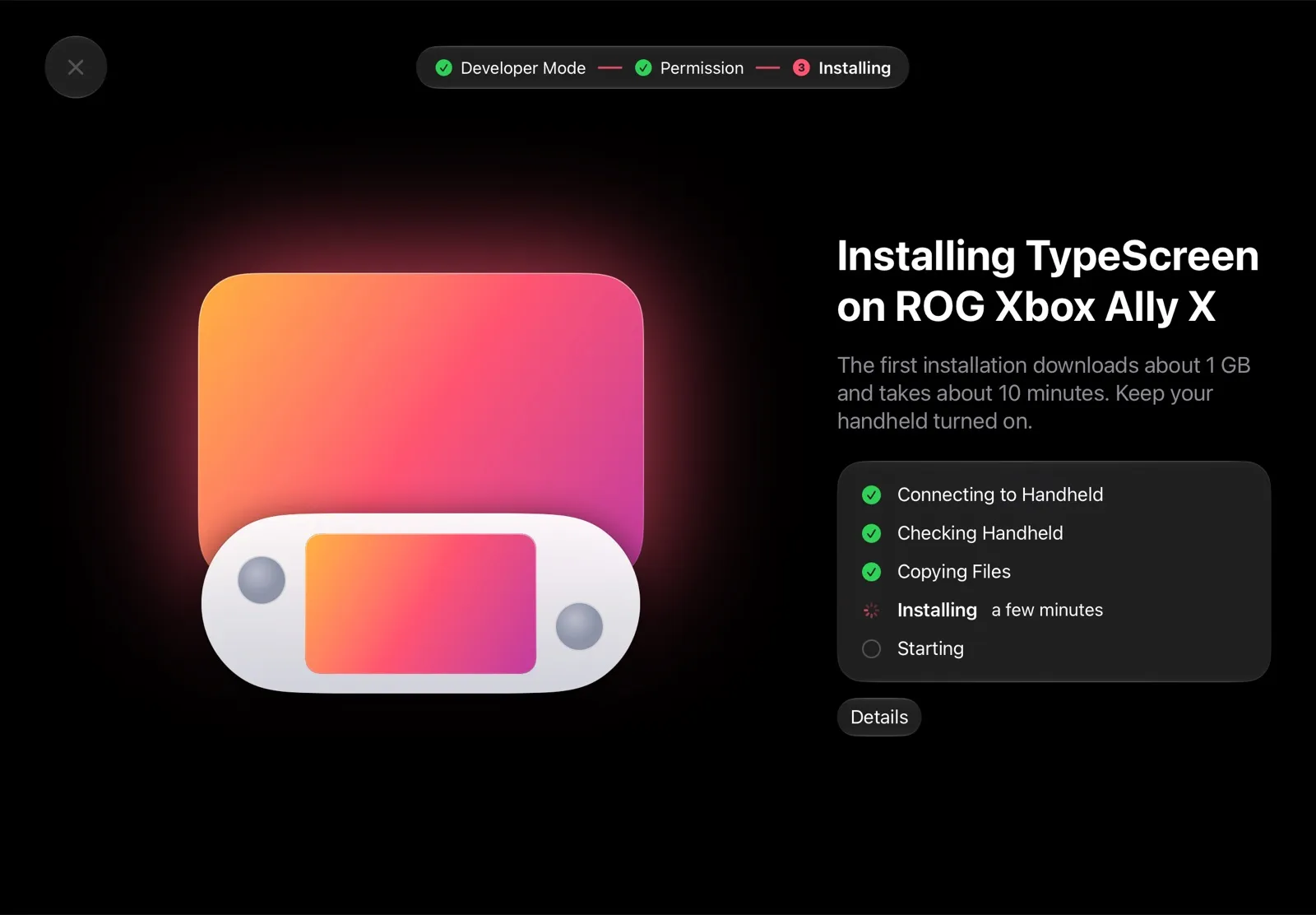
Install TypeScreen on Your Handheld from iPad
Turn on Developer Mode and select “Pair new host” on your handheld. The iPad app finds your handheld over Wi‑Fi and installs TypeScreen. You don’t need Desktop Mode, a terminal, or passwords.
Installation GuideConnect the Cable
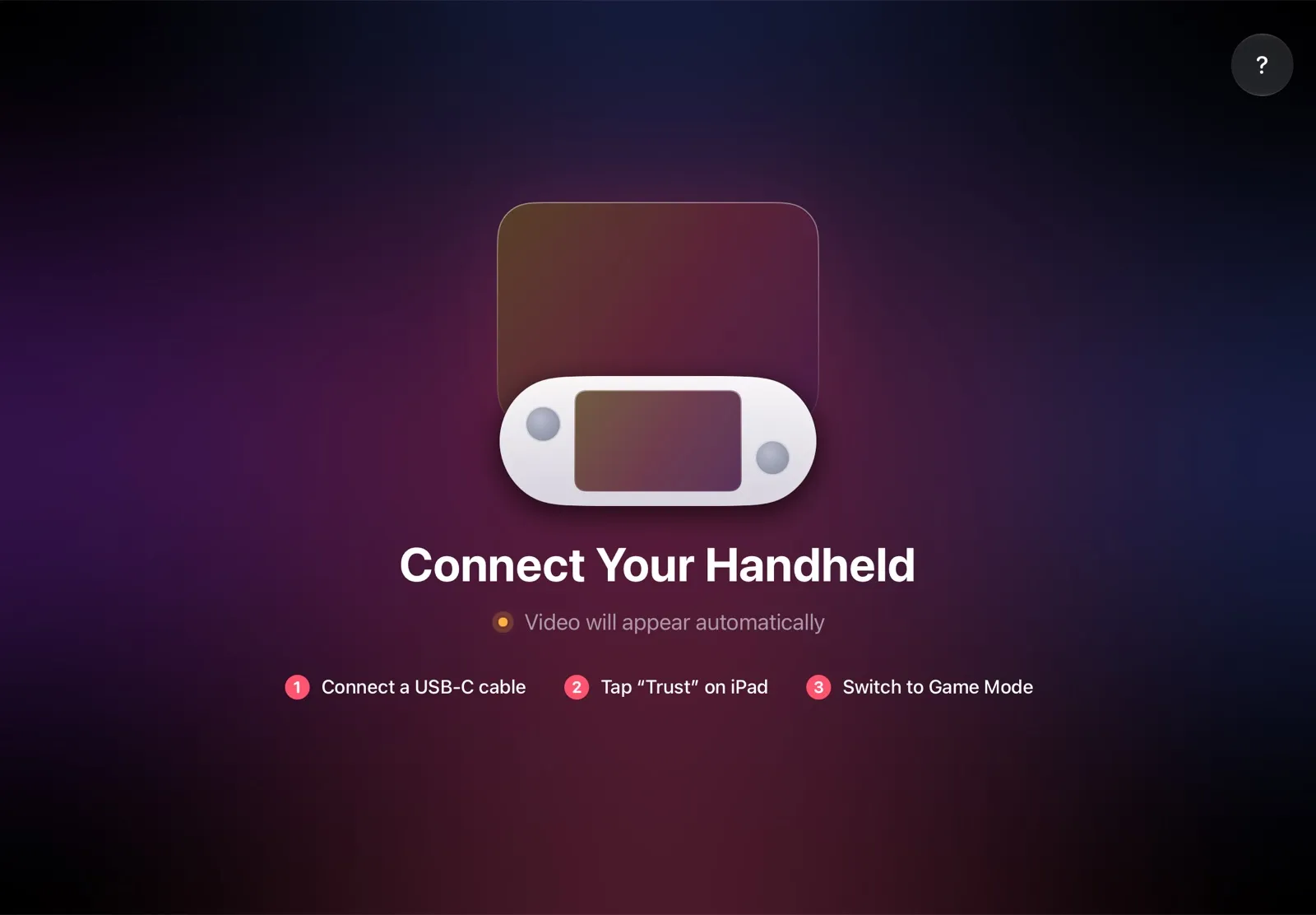
Connect your iPad to the handheld with a USB‑C cable and tap Trust on iPad. With your handheld in Game Mode, video appears on iPad automatically.
What You Need
- iPad
- With iPadOS 17 or later.
- Handheld
- A SteamOS handheld in Game Mode, such as Steam Deck, ROG Ally, or Legion Go.
- Cable
- USB‑C to USB‑C — the cable that came with your iPad works. For an iPad with a Lightning port, use a USB‑C to Lightning cable.
- Wi‑Fi
- Just once, to install TypeScreen on your handheld. Video travels only over the cable.
Questions and Answers
Can I use my iPad as a monitor for my Steam Deck?
Yes. Install TypeScreen on your iPad and on your Steam Deck, then connect them with a USB‑C cable. Your iPad becomes a big screen for Game Mode, and you keep playing with the Steam Deck controls.
All 4 Ways to Use an iPad with Steam DeckDo I need a capture card or an HDMI adapter?
No. TypeScreen sends video over a regular USB‑C cable, like the one you charge your iPad with. There’s no capture card, dock, or HDMI cable involved.
Does it work over Wi‑Fi?
No. Video travels only over the cable, so there’s no network to set up. Wi‑Fi is needed just once, to install TypeScreen on your handheld.
Which handhelds work with TypeScreen?
Steam Deck, ROG Ally, Legion Go, and other handhelds running SteamOS in Game Mode. Handhelds running Windows aren’t supported.
Which iPad do I need?
Any iPad with iPadOS 17 or later. For an iPad with a USB‑C port, use a USB‑C to USB‑C cable. For an iPad with a Lightning port, use a USB‑C to Lightning cable.
Does audio play on iPad? Can I use touch controls?
No. Audio and controls stay on your handheld; iPad works as its screen.
How much delay does it add?
In our tests with ROG Xbox Ally X and iPad Air (5th generation), a game frame took about 40–50 ms to get from the handheld to the iPad screen.
Does TypeScreen collect any data?
Only if you allow it. When you first open the app, it asks whether it can send usage and crash data to the developer. Nothing is sent until you agree, and you can change your answer in Help → Share Analytics. There are no accounts or ads.
Privacy PolicyYour Handheld, on the Big Screen
TypeScreen is available on the App Store. It’s free, with no accounts or ads.
Download on the App Store