
iPad vs Portable Monitor for Steam Deck: Which Should You Use? (2026)
iPad vs portable monitor: which screen should your Steam Deck use? A portable monitor for Steam Deck is the classic answer — a thin 15–16 inch panel and one USB‑C cable. But if there’s an iPad in your bag, you may already have the screen. Here’s how the two compare, what to look for in a monitor, and how to fix power and no-signal problems.
Prices below are US prices as of October 2026.
| Option | Cost | In your bag | Screen |
|---|---|---|---|
| Your iPad with TypeScreen | free; you already own the iPad | the iPad and its USB‑C cable | Retina |
| Portable monitor | about $130–240 | the monitor, a cable, sometimes a power adapter | usually 1080p |
Connecting to a TV or a desktop monitor instead? See How to Connect Steam Deck to a Monitor or TV.
What to look for in a portable monitor for Steam Deck
- USB‑C video input. The Deck sends video over DisplayPort 1.4 Alt Mode, so the monitor needs a USB‑C input that accepts DisplayPort — or a mini HDMI input plus a hub on the Deck.
- Power over the same cable. Some monitors run from the Deck over a single cable; others need a separate power supply (more below).
- Power passthrough. The Deck has one USB‑C port. A monitor that passes charging through to the Deck lets you play plugged in.
- Refresh rate. 60 Hz covers most games; 120–144 Hz models exist for faster ones.
For example, the 16.1‑inch Arzopa Z1FC (1080p, 144 Hz) was $129.99 on sale, and Plugable’s 15.6‑inch USB‑C monitor was $239.95.
Downsides: a portable monitor is a separate purchase and one more screen to carry, and some models need an external power supply.
Can the Steam Deck power a portable monitor?
Sometimes. Arzopa says one USB‑C cable can carry both power and video when the device “provides enough power”. Plugable states its monitor works with the Steam Deck but “requires an external power connection”. Check the manufacturer’s notes for your model before you buy — a monitor that needs a wall outlet is less portable than it looks.
Steam Deck portable monitor charging
With the monitor in the Deck’s only USB‑C port, the Deck charges only if the monitor or a hub passes power through. Look for “PD pass-through” in the specs: Plugable’s monitor, for instance, passes through up to 100 W.
Steam Deck portable monitor shows no signal?
- Check the cable. Charging-only and basic USB 2.0 cables don’t carry DisplayPort video. Use the cable that came with the monitor, or one rated for video.
- Plug in the monitor’s power if it has a separate input — some panels won’t light up on the Deck’s power alone.
- Update SteamOS. Valve has fixed several issues where external displays stayed blank.
- Try External Display Safe Mode in the Deck’s Display settings if the screen stays black in Game Mode.
More fixes: Steam Deck monitor not working.
Use the iPad you already own
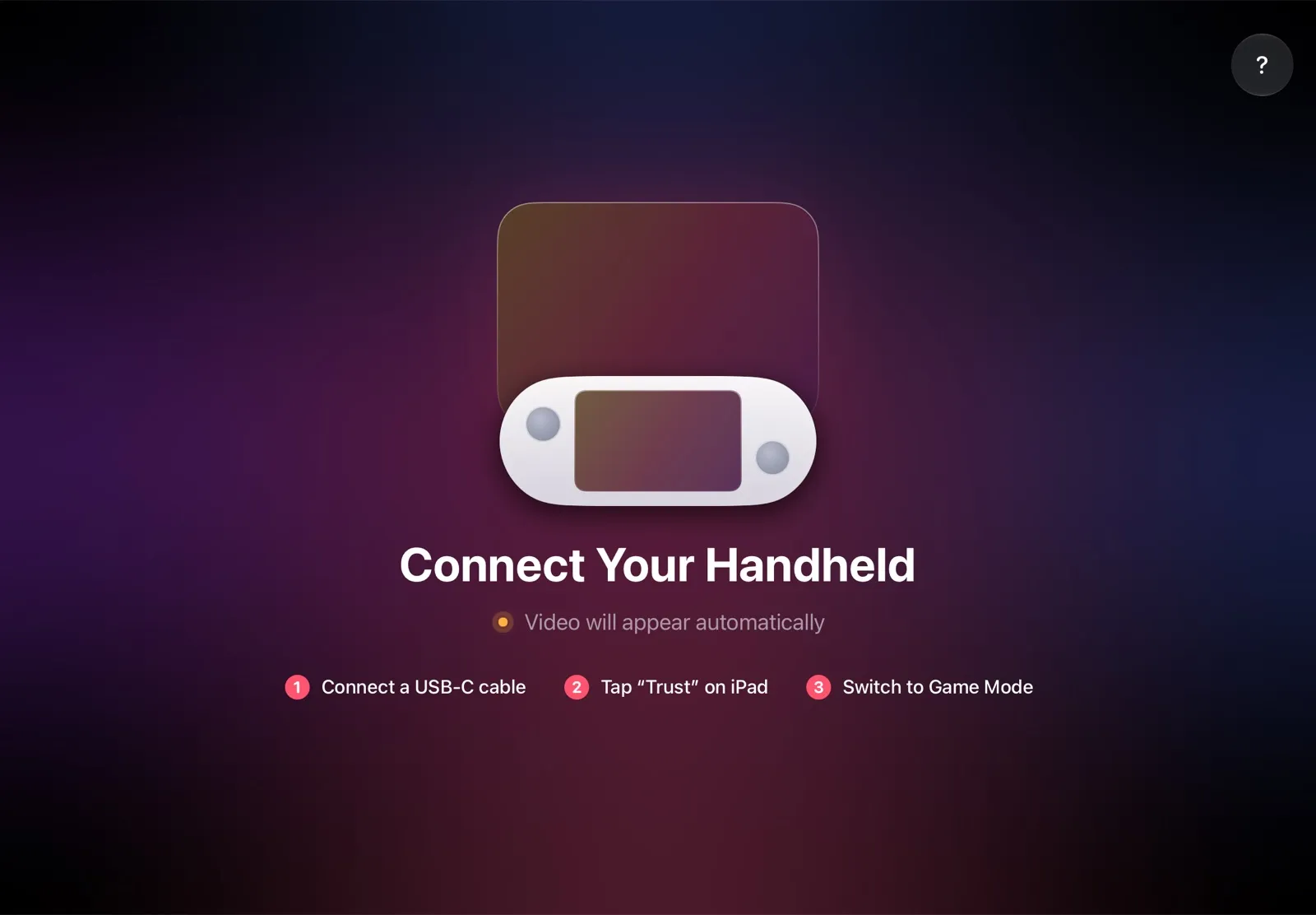
An iPad has no video input, so a cable alone shows nothing — but with TypeScreen, the same USB‑C cable you charge the iPad with is enough. The handheld encodes the picture in hardware and sends it to the iPad over USB; the iPad shows your game full screen.
Why the iPad is a great portable screen:
- No purchase. If you own an iPad, the screen is already in your bag, and TypeScreen is free.
- A sharper screen. iPad Air (5th generation), for example, fits 2360 × 1640 pixels into its 10.9‑inch display; a typical 16‑inch portable monitor has 1920 × 1080.
- Its own battery. The iPad doesn’t need a power supply.
- One cable, no network. No capture card, no hub, no Wi‑Fi while you play.
How to set it up: install TypeScreen on the iPad (free, coming soon to the App Store), install it on the handheld from the iPad app once, then connect the cable and tap Trust. The installation guide has every step, and iPad as a Monitor for Steam Deck compares all the ways to use an iPad as a screen.
Which is better for you?
Your iPad, if:
- you already own one and would rather not buy another screen;
- you travel light: the iPad comes along anyway, and one cable is all you need.
A portable monitor, if:
- you don’t own an iPad;
- you want one screen for several devices — a Switch, a laptop, a phone with video out.
FAQ
What is the best portable monitor for Steam Deck?
One with a USB‑C video input, power passthrough for the Deck, and a power design that suits you — single-cable, or with its own adapter. If you already own an iPad, try it first: with TypeScreen it becomes the screen at no cost.
Can an iPad act as a portable monitor?
For a Steam Deck or another SteamOS handheld, yes — with TypeScreen over one USB‑C cable. For HDMI devices such as a Switch, an iPad needs a capture card and a viewer app like Orion, because it has no video input.
Should I get a portable monitor or an iPad?
If you already own an iPad, it saves you $130–240 and one more device to carry, and its Retina screen has more pixels than a 1080p monitor. A portable monitor makes sense if you don’t have an iPad or need one screen for several devices.
Is an iPad Pro a good Steam Deck screen?
Yes. TypeScreen works with any iPad on iPadOS 17 or later, and the 13‑inch iPad Pro and iPad Air have the biggest iPad screens.