How to Cast Steam Deck to TV: AirPlay, Chromecast and More (2026)
Want to cast Steam Deck to TV the way you cast from a phone? You can’t: SteamOS has no AirPlay, no Chromecast (Google Cast) and no Miracast, in Game Mode or in Desktop Mode. What works without a cable is Steam Link, Valve’s free app: install it on the TV or on a box like Apple TV, Google TV or Fire TV, and the Deck streams the game to it over your home network. Here’s which TVs and boxes run it, how to set it up, what to expect from the lag, and two ways to skip the network: a cable to the TV, or one USB‑C cable to the iPad you may already own.
| Way | What you need | Network while you play | Cost | Works away from home |
|---|---|---|---|---|
| TypeScreen with your iPad | your iPad and one USB‑C cable | none | free | yes |
| Steam Link on a TV or a box | the Steam Link app on the TV, or a box like Apple TV, Google TV or Fire TV | the same home network as the Deck, Wi‑Fi or Ethernet | free, plus a box if the TV can’t run the app | in practice, only at home |
| Moonlight | Decky Loader and Decky Sunshine on the Deck, Moonlight on the TV or a box | the same home network as the Deck | free | in practice, only at home |
| USB‑C to HDMI | an adapter, hub or dock, and an HDMI cable | none | a $34.95 hub or the $79 Valve dock | where there’s a TV you can use |
| AirPlay, Chromecast, Miracast | not supported: SteamOS can’t cast | n/a | n/a | n/a |
Prices are US prices as of October 2026.
Can you cast Steam Deck to a TV?
Not the way you cast from a phone or a laptop: there’s no Cast button in Game Mode, and Desktop Mode doesn’t add one. Owners have asked for “a cast button in the quick menu” in a Steam forum thread since 2022, and in October 2026 there’s still none. What works instead is streaming the game with Steam Link. Here’s what that means for each way people try to cast Steam Deck to a TV.
Steam Deck AirPlay and Apple TV
SteamOS has no AirPlay, so the Deck can’t mirror its screen to an Apple TV the way an iPhone does. The Apple TV can still show your games: install Steam Link from its App Store (it needs tvOS 15 or later) and stream from the Deck, as described below.
Steam Deck Chromecast and Google TV
A classic Chromecast, the dongle without a remote, only plays what a phone or a browser casts to it, and SteamOS can’t cast a game to it. A Chromecast with Google TV or Google’s current Google TV Streamer is different: it runs Android TV OS and gets Steam Link from Google Play, so the Deck can stream to it. The same goes for TVs with Google TV or Android TV built in.
Steam Deck screen mirroring and Miracast
SteamOS has no wireless screen mirroring, Miracast included, even though owners asked for Steam Deck Miracast support in the same 2022 thread. With a cable, Desktop Mode can show a game on the Deck’s screen and the TV at once, as Valve’s docking guide notes. Without one, use Steam Link.
How to stream Steam Deck to a TV wirelessly with Steam Link
Steam Link is the closest you get to casting Steam Deck to a TV. The Deck runs the game as the Remote Play host, as Valve calls it in its SteamOS notes, and sends the picture to Valve’s free app on the TV or box; your controller’s input goes back to the Deck. Both have to be on the same local network, usually your home Wi‑Fi or Ethernet.
Which TVs and boxes run Steam Link
Valve makes Steam Link for these TV devices, according to its Remote Play page:
- Apple TV with tvOS 15 or later, from the App Store.
- Android TV and Google TV: TVs with either built in, the Google TV Streamer and the older Chromecast with Google TV, from Google Play.
- Amazon Fire TV with Fire OS, such as the Fire TV Stick 4K Max, the Fire TV Cube and TVs with Fire TV built in, from the Amazon Appstore. Valve posted the list of Fire TV devices when the app came out.
- Raspberry Pi 3, 4 or 5, plugged into the TV.
Check the Fire TV model before you buy: Amazon’s newest sticks run its Vega OS instead of Fire OS, and Steam Link, an Android app, isn’t available for them. Amazon’s device specs list Vega OS for the Fire TV Stick 4K Select, the 2026 Fire TV Stick HD and the third-generation Fire TV Stick 4K.
Valve doesn’t make Steam Link for Samsung, LG or Roku TVs, and Samsung’s own version stopped working after November 30, 2023 (SamMobile). On those TVs, plug in one of the boxes above. If you need one, the Fire TV Stick 4K Max lists for $84.99 on Amazon and the Google TV Streamer is $149.99 at the Google Store, US prices as of October 2026.
How to set it up
- On the Deck, press the STEAM button, open Settings > Remote Play and check that Enable Remote Play is on.
- Connect the Deck and the TV or box to the same home network. Valve recommends Ethernet for both the TV box and the host; for the Deck, that means a dock with an Ethernet port. If you hold the Deck while you play, use 5 GHz Wi‑Fi.
- Open Steam Link on the TV and select your Steam Deck.
- The TV shows a PIN: enter it on the Deck. If the Deck isn’t in the list, choose Other Computer on the TV, then on the Deck open Settings > Remote Play > Pair Steam Link and enter the PIN from the TV.
- Play with the Deck in your hands, or pair a Bluetooth controller with the TV or box, as Valve’s app pages suggest. The TV shows what the Deck shows.
Downsides:
- The delay depends on your network. On an ordinary home Wi‑Fi it’s very noticeable; it gets low only on a very fast, stable network, with the Ethernet Valve recommends.
- If your TV can’t run Steam Link, it’s a box to buy.
- The Deck and the TV need one local network, so in practice it’s a home setup. Playing on an iPad with no Wi‑Fi? Steam Link without Wi‑Fi covers the wired options.
Moonlight and Sunshine: another way to stream Steam Deck to a TV
Moonlight is a free, open-source streaming client, and Sunshine is the server you run on the Deck. The Decky Sunshine plugin installs and starts Sunshine from Game Mode, and it needs the Decky Loader plugin system first. Moonlight has apps for Apple TV, Android TV, Google TV and Fire TV with Fire OS; LG and Samsung TVs have community versions you install yourself (on LG, in Developer Mode).
How to set it up: in Desktop Mode, install Decky Loader with its installer (it asks for your admin password), then add Decky Sunshine from the Decky store in Game Mode. Open Moonlight on the TV and select the Deck, enter the PIN that Moonlight shows under Decky Sunshine > Pair Client on the Deck, then choose Desktop in Moonlight.
Downsides:
- It’s the most hands-on way: Decky Loader installs from Desktop Mode with your admin password, and the plugin runs Sunshine as root.
- Decky can disappear after a SteamOS update until you run its installer again.
- Like Steam Link, it streams over your network, and the delay depends on it: Moonlight’s Google Play page highly recommends 5 GHz Wi‑Fi for the device you watch on and Ethernet for the host.
Skip the network: a USB‑C to HDMI cable
If the TV is within reach of a cable, use one. The Deck’s USB‑C port outputs video (DisplayPort 1.4 Alt Mode), so a USB‑C to HDMI adapter, or a hub or dock with HDMI, puts the picture on the TV with no network involved: for example, Plugable’s 7‑in‑1 hub ($34.95) or Valve’s Steam Deck Dock ($79), US prices as of October 2026. Step by step, with fixes for a black screen: how to connect Steam Deck to a monitor or TV.
Downsides:
- You play where the TV is, and the cable ties the Deck to it: from the couch, you need a long cable or a separate controller.
- An adapter alone leaves the Deck on battery; a dock is one more box with its own power supply.
Want a big screen without network lag? Use your iPad
TypeScreen, our app, makes your iPad the big screen instead of the TV: the Deck encodes the picture in hardware and sends it to the iPad over one USB‑C cable, the same cable you charge the iPad with. There’s no network in between while you play, and you keep playing with the Deck’s own controls. iPads range from 8.3 inches (iPad mini) to 13 inches (iPad Air and iPad Pro); the game keeps the Deck’s 16:10 shape with thin bars at the top and bottom, and a pinch fills the whole iPad screen.
What you need: an iPad with iPadOS 17 or later, a Steam Deck or another SteamOS handheld in Game Mode, and a USB‑C cable.
How to set it up:
- Install TypeScreen on the iPad. It’s free on the App Store.
- Install TypeScreen on the Deck from the iPad app — once, at home, with both devices on Wi‑Fi and the Deck online. The app walks you through turning on Developer Mode and selecting “Pair new host”.
- Connect the cable and tap Trust on the iPad. In Game Mode, your game appears on the iPad automatically.
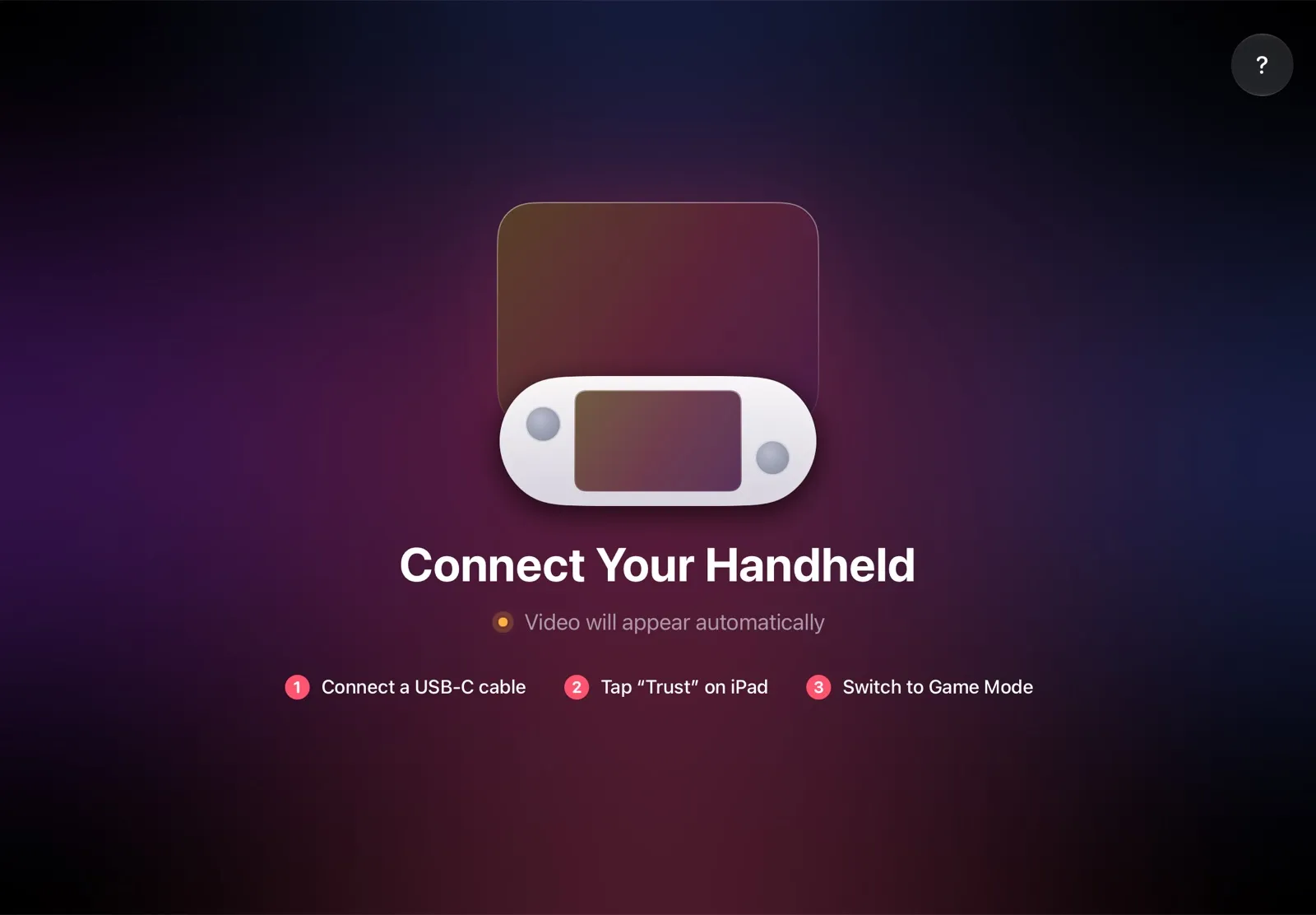
The installation guide has every step, and iPad as a monitor for Steam Deck compares all the ways to use an iPad as the screen, Steam Link included.
Why it’s the simplest way:
- No Wi‑Fi lag. The picture goes over the cable, so a slow or busy network can’t add delay.
- Nothing to buy. The app is free, and the cable is the one you already have: no TV box, no dock.
- The big screen goes with you. The iPad fits in the same bag as the Deck, so you can play at a desk, in a hotel or on a train.
- Made for your devices. The Deck detects the iPad’s display and picks the resolution and frame rate for it.
Which way should you use?
- You want a bigger screen without network lag, and you own an iPad: TypeScreen, with one USB‑C cable and nothing to buy.
- You want the game on the living room TV, without a cable: Steam Link on the TV or a box, on a fast home network with Ethernet for the box.
- You already use Decky and like tuning stream settings: Moonlight and Sunshine.
- The TV is within reach of a cable: a USB‑C to HDMI adapter or a dock.
FAQ
Is there a Steam Deck cast to TV button?
No. SteamOS has no cast option in Game Mode or Desktop Mode. To get the Deck on a TV without a cable, stream it with Steam Link to the app on the TV or on a box.
Can you AirPlay a Steam Deck to an Apple TV?
Not with AirPlay: SteamOS doesn’t have it. Install Steam Link on the Apple TV (tvOS 15 or later) and stream from the Deck over your home network instead.
Can you Chromecast a Steam Deck?
Not to a classic Chromecast. A Google TV Streamer, a Chromecast with Google TV or a TV with Google TV built in can run Steam Link, and the Deck streams to it.
Does Steam Deck have screen mirroring?
Not wirelessly: SteamOS has no built-in wireless screen mirroring or Miracast. With a cable, Desktop Mode can show a game on both screens at once. To mirror Steam Deck to TV without a cable, use Steam Link: the TV shows the Deck’s screen over your home network.
How do I connect Steam Deck to a TV wirelessly?
Turn on Remote Play on the Deck, put the Deck and the TV or box on the same home network, open Steam Link on the TV, select the Deck and enter the PIN the TV shows. Then play with the Deck in your hands or with a controller paired with the TV.
Can I stream Steam Deck to a Samsung, LG or Roku TV?
Not with Steam Link: Valve doesn’t make it for Samsung, LG or Roku TVs, and Samsung’s own version stopped working in 2023. Plug in an Apple TV, Google TV or Fire TV box, or install a community Moonlight app on an LG or Samsung TV.
Can I stream Steam Deck to a Fire TV Stick?
Yes, on Fire TV models with Fire OS, such as the Fire TV Stick 4K Max: Steam Link is in the Amazon Appstore. The newest sticks with Vega OS, such as the Fire TV Stick 4K Select, can’t run it.
Can you connect Steam Deck to a TV with Bluetooth?
Not for the picture: Bluetooth doesn’t carry video. Use it for a controller, for example one paired with the TV box while you stream with Steam Link.
Does streaming Steam Deck to a TV lag?
It depends on your network. On an ordinary home Wi‑Fi the delay is very noticeable; it gets low only on a very fast, stable network, ideally with Ethernet, as Valve recommends. With a cable, to your iPad with TypeScreen or to a TV with HDMI, there’s no network in between.
Can I play Steam Deck on a bigger screen without Wi‑Fi?
Yes. With TypeScreen, one USB‑C cable makes your iPad the Deck’s screen, with no network while you play. For a TV, use a USB‑C to HDMI adapter or a dock.