
Steam Link Without Wi‑Fi: How to Play Steam Deck on iPad (2026)
Can you use Steam Link without Wi‑Fi to play your Steam Deck on an iPad — on a train, in a hotel, anywhere the network is bad or missing? Short answer: Steam Link needs a network between the two devices, so without Wi‑Fi you need a wired network instead — or a way that doesn’t need a network while you play. Here are your options.
| Way | Needs Wi‑Fi | What you need | Network settings |
|---|---|---|---|
| TypeScreen | no | one USB‑C cable | none |
| Steam Link over Ethernet | no | hub with Ethernet, Ethernet cable, USB‑C Ethernet adapter | link-local addresses |
| Steam Link over Wi‑Fi | yes | the same Wi‑Fi on both devices | none, but the delay depends on the network |
Do you need to be on the same Wi‑Fi for Steam Link?
With a Deck and an iPad side by side, you need the same local network, and Wi‑Fi is the usual one. Steam Link can also stream over the internet, but then the lag depends on both connections. Steam Link for iPad streams from a computer — here, your Steam Deck as the Remote Play host — “on the same local network”, as its App Store page puts it, and Valve recommends 5 GHz Wi‑Fi with a wired connection on the host side. An Ethernet network works too, as you’ll see below. No network between the Deck and the iPad means no stream.
That’s also why Steam Link is at its weakest on the road. On an ordinary Wi‑Fi the lag is very noticeable — we saw it in our own tests — and hotel or train Wi‑Fi is rarely the fast, stable 5 GHz network Steam Link needs.
Wi‑Fi, local network, internet: what Steam Link needs
Three things often get mixed up:
- Wi‑Fi is one way to build a local network — the usual one at home.
- A local network connects your devices to each other. That’s what Steam Link streams over, through Wi‑Fi or Ethernet.
- Internet access connects that network to the outside world. Valve’s App Store page asks only for the local network, and Steam users report streaming through a router with no internet. Valve doesn’t document this, so set up Steam Link and pair it with the Deck while you’re online.
TypeScreen needs none of them while you play: the picture goes over the USB‑C cable. You set it up once at home, with both devices on Wi‑Fi and the Deck online.
Steam Link without Wi‑Fi: use Ethernet instead
You can replace Wi‑Fi with a cable network between the two devices. This is the setup Steam community members describe:
- Connect a hub or dock with an Ethernet port to the Deck — the Valve dock has one ($79 in the US as of October 2026).
- Connect a USB‑C to Ethernet adapter to the iPad; iPadOS supports them.
- Join the two with an Ethernet cable.
- Turn Wi‑Fi off on the iPad and set the Deck’s wired connection to link-local addressing.
- Open Steam Link on the iPad and connect to the Deck.
The same wired network works for Moonlight, the other free streaming app.
Downsides: three extra parts plus network settings, and there’s no official guide for this setup, so expect some trial and error with your adapters. The hub also takes the Deck’s only USB‑C port.
Play Steam Deck on iPad without any network
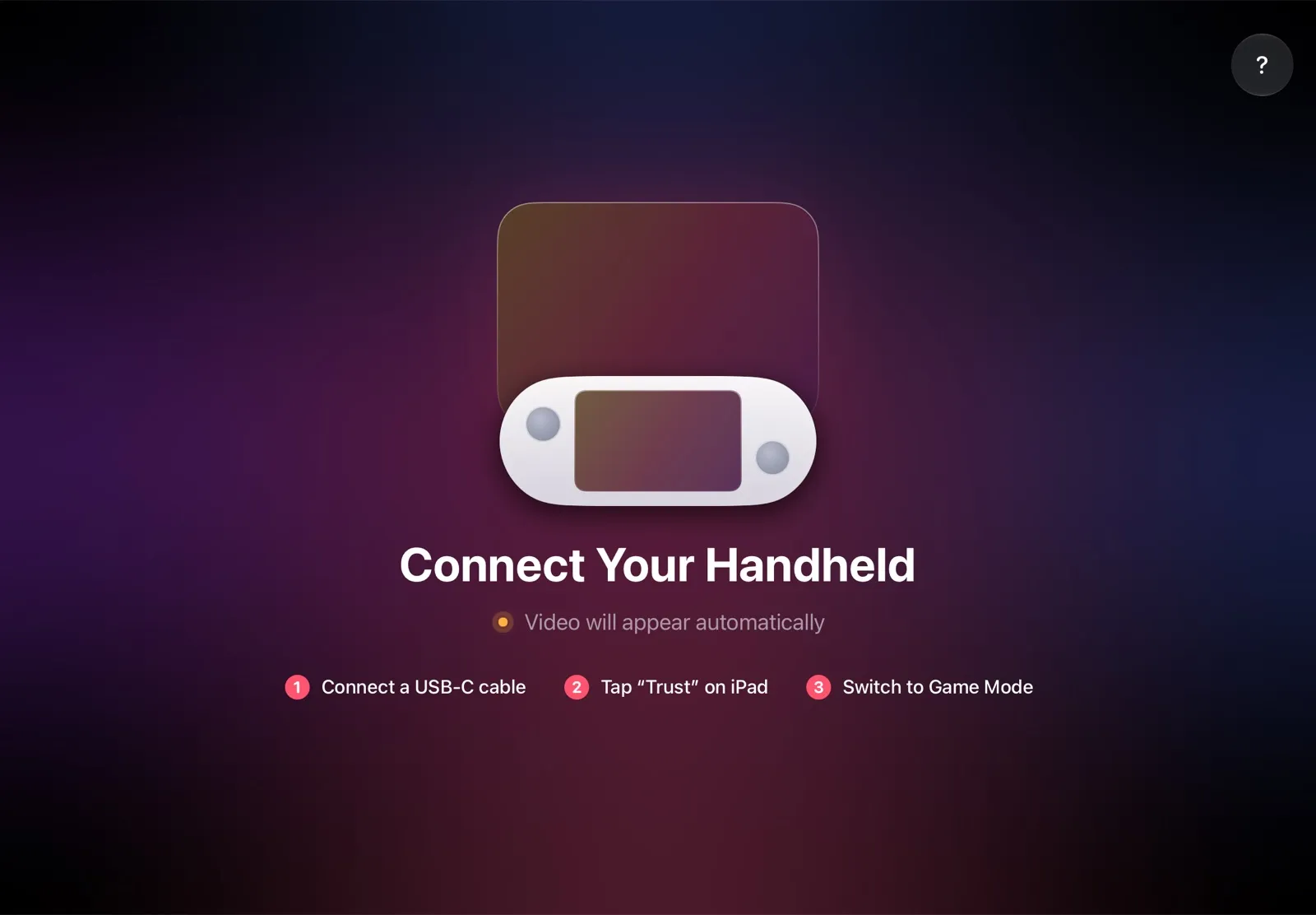
TypeScreen doesn’t need a network while you play. The Deck encodes the picture in hardware and sends it to the iPad over one USB‑C cable — the same cable you charge your iPad with. No Wi‑Fi, no router, no network settings, no adapters.
Why it beats Steam Link on the road:
- No Wi‑Fi needed while you play. The picture goes over the cable, so bad or missing Wi‑Fi doesn’t matter.
- No Wi‑Fi lag. A slow or busy network can’t add delay to a cable.
- Nothing to buy. The app is free, and the cable is the one you already have.
- Plug in and play. Connect the cable in Game Mode, and the game appears on the iPad.
How to set it up: install TypeScreen on the iPad (free, coming soon to the App Store), then install it on the Deck from the iPad app — once, at home, with both devices on Wi‑Fi and the Deck online. After that, all you need is the cable. The installation guide has every step, and how to connect Steam Deck to iPad with a USB‑C cable explains what the cable does.
Getting ready for a trip
- Install TypeScreen on the iPad and the Deck at home.
- Download your games: according to Valve, installed games play while Steam Deck is offline, unless a game itself needs an internet connection.
- Pack the USB‑C cable. On the road, connect it in Game Mode, and the game appears on the iPad.
Which should you use?
- No Wi‑Fi, or Wi‑Fi you can’t trust: TypeScreen — one cable, no network.
- At home on fast 5 GHz Wi‑Fi: Steam Link works without extra hardware.
- You already have Ethernet adapters: Steam Link over Ethernet.
More ways to use an iPad as a Steam Deck screen: iPad as a Monitor for Steam Deck.
FAQ
Does Steam Link work without internet?
Users report that it does, as long as both devices are on the same local network: that’s what Valve asks for, not internet access. Valve doesn’t document offline use, though, so set up and pair Steam Link while you’re online. TypeScreen needs no network at all while you play.
Can I use Steam Link without the same Wi‑Fi?
Yes, if the two devices share a local network some other way, such as the Ethernet setup above. With no network between them, Steam Link can’t stream; TypeScreen uses a USB‑C cable instead.
Does Steam Deck work without internet?
Yes, for games you’ve installed: they play while Steam Deck is offline unless a game needs an internet connection, according to Valve. And with TypeScreen, the iPad screen doesn’t need the internet either — the picture goes over the cable.
Can I play Steam Deck on my iPad on a train?
Yes, with TypeScreen: once it’s installed, the game goes to the iPad over a USB‑C cable, with no Wi‑Fi involved.