
How to Connect Steam Deck to iPad With a USB‑C Cable (2026)
You want to connect Steam Deck to iPad and play on the bigger screen, and there’s a USB‑C cable that fits both. Can you connect a Steam Deck to an iPad with that cable? Yes — but on its own the cable doesn’t carry a picture. Here’s what happens when you plug them together, why the dock and HDMI adapters don’t help, and how to connect Steam Deck to iPad wired so the game actually shows up.
| Way | Between the Deck and the iPad | Network settings | Cost |
|---|---|---|---|
| TypeScreen | one USB‑C cable | none | free |
| Capture card | hub, HDMI cable, capture card, USB‑C cable | none | about $50–240 |
| Ethernet | hub with Ethernet, Ethernet cable, USB‑C adapter | Wi‑Fi off, link-local | adapters |
Prices are US prices as of October 2026.
What happens when you plug a Steam Deck into an iPad
The cable connects the two devices over USB, and USB‑C also carries power, so the iPad may start charging from the handheld. What you won’t see is the game. Power and data travel over that cable; a picture doesn’t — not without help.
Why Steam Deck can’t output video to iPad on its own
The Steam Deck’s USB‑C port sends video out using DisplayPort 1.4 Alt Mode — to a monitor, a TV or a dock. The iPad’s USB‑C port is a video output as well: Apple describes it as a way to connect external displays. Connect two video outputs and neither of them listens.
The only way in for video that Apple documents is a USB camera: since iPadOS 17, apps can use external UVC cameras, and a capture card turns HDMI into exactly that. The other wired ways don’t send a video signal at all. Ethernet adapters join the two devices into a local network for streaming apps such as Steam Link or Moonlight, and TypeScreen sends the game picture as data over the USB cable itself.
Does the Steam Deck dock work with iPad?
Not directly. The Valve dock and USB‑C to HDMI adapters give the Deck an HDMI output, but the iPad has no HDMI input — there’s nowhere to plug the HDMI cable. To use the dock with an iPad, you need a capture card between them.
Connect Steam Deck to iPad with a capture card
A capture card turns HDMI into a USB camera feed that an iPad app can show.
You’ll need:
- an iPad with USB‑C and iPadOS 17 or later;
- a USB‑C hub or dock with HDMI for the Deck — about $35, or $79 for the Valve dock;
- an HDMI capture card that works as a UVC device — from about $15 to $160;
- an HDMI cable;
- a viewer app such as Orion or Genki Studio.
Connect it like this: Deck → hub → HDMI cable → capture card → USB‑C cable → iPad. Open the viewer app and allow camera access.
Downsides: four parts between the Deck and the iPad, and the hub takes the Deck’s only USB‑C port — to charge while you play, the hub needs power passthrough.
Connect Steam Deck to iPad wired, over Ethernet
Steam Link and Moonlight stream games over a local network, and that network can run over cables instead of Wi‑Fi. Steam community members describe this setup:
- a dock or hub with Ethernet on the Deck;
- a USB‑C to Ethernet adapter on the iPad — iPadOS supports them;
- an Ethernet cable between them;
- the free Steam Link or Moonlight app.
Turn Wi‑Fi off on the iPad, set the Deck’s wired connection to link-local addressing, then connect from the app on the iPad. More on this setup: Steam Link without Wi‑Fi.
Downsides: three extra parts plus network settings, and there’s no official guide for this setup, so expect some trial and error with your adapters.
Connect Steam Deck to iPad with one USB‑C cable
TypeScreen is our app, and it’s built for exactly this cable. Instead of turning the picture into a video signal, the handheld encodes it in hardware and sends it as data over USB; the iPad app shows it full screen. No capture card, no dock, no adapters, no network while you play.
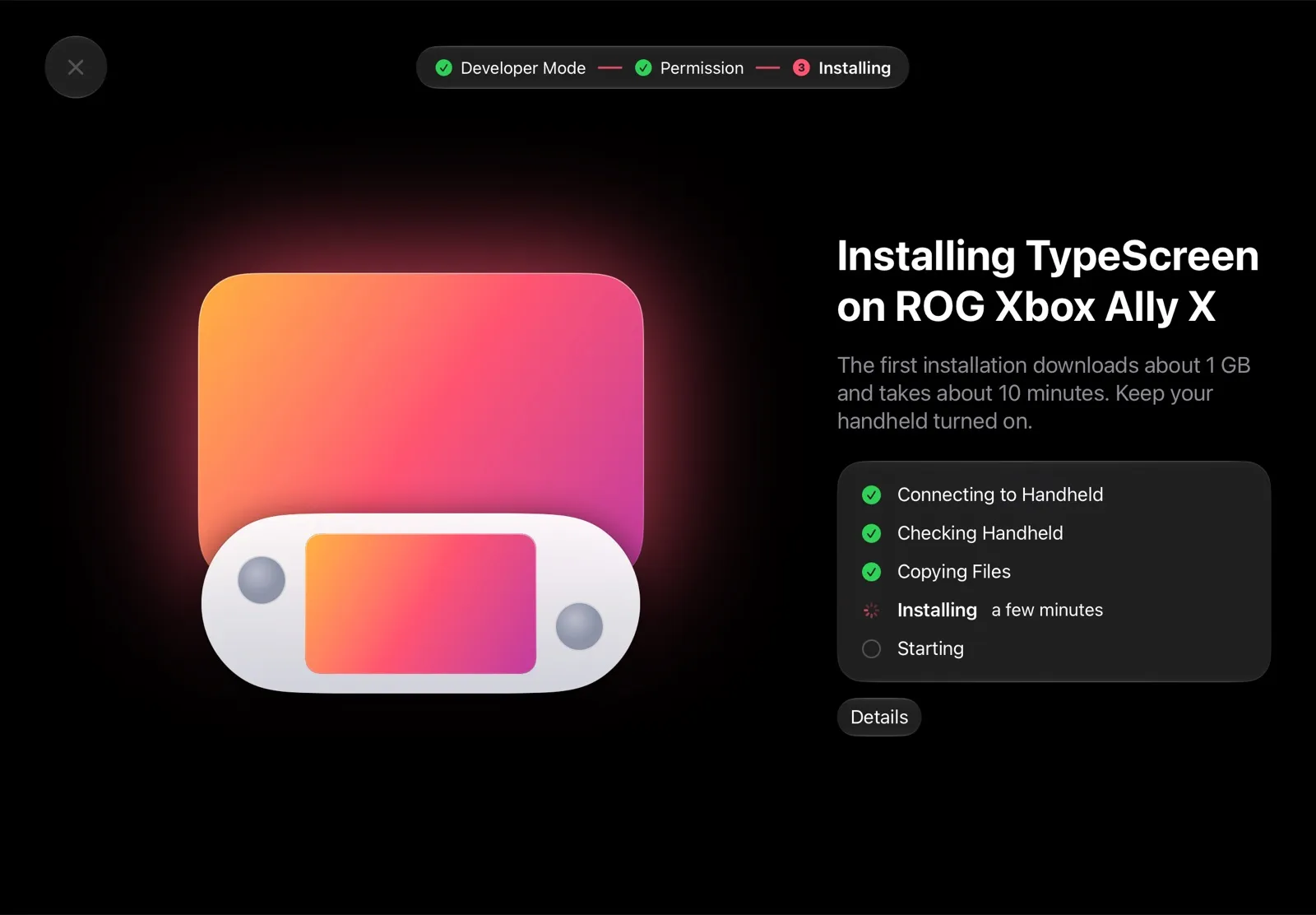
You’ll need: an iPad with iPadOS 17 or later, a Steam Deck or another SteamOS handheld in Game Mode, and a regular USB‑C cable — the one you charge your iPad with works.
Set it up once:
- Install TypeScreen on the iPad — free, coming soon to the App Store.
- In the app, install TypeScreen on the handheld: turn on Developer Mode and select “Pair new host” on the handheld. This step uses your Wi‑Fi.
- Connect the cable and tap Trust on the iPad. In Game Mode, the game appears on the iPad.
After that, connecting your Steam Deck to the iPad is just plugging in the cable. The installation guide has every step.
Why it’s the easiest way:
- One cable. Nothing between the handheld and the iPad but the cable you charge your iPad with.
- No network. No Wi‑Fi while you play, and nothing to configure.
- Free. Nothing to buy.
- Plug in and play. Set it up once; after that, the game appears on the iPad by itself.
Which way to connect
- One cable and nothing else: TypeScreen.
- You already have a capture card and a dock: the capture card setup.
- You have Ethernet adapters and don’t mind network settings: Steam Link or Moonlight over Ethernet.
All four ways to use an iPad as a Steam Deck screen, side by side: iPad as a Monitor for Steam Deck.
FAQ
Can you plug a Steam Deck into an iPad?
Yes. With TypeScreen, one USB‑C cable is enough. Other ways need a capture card, or a network for Steam Link or Moonlight — Wi‑Fi or Ethernet adapters — and then the delay depends on how good that network is.
Can I use my iPad as a monitor with USB‑C?
For a Steam Deck or another SteamOS handheld, yes — with TypeScreen, the USB‑C cable carries the picture. For other devices, the iPad’s USB‑C port takes video only from a capture card.
Can I connect a Steam Deck to an iPad Pro?
Yes. iPad Pro works with TypeScreen on iPadOS 17 or later, and with capture cards through its USB‑C port.
How do I connect a Steam Deck to an iPad Air?
The same way as any iPad: with TypeScreen and a cable. iPad Air (4th generation) and later have USB‑C, so a USB‑C to USB‑C cable is all you need; iPad Air (3rd generation) has Lightning and needs a USB‑C to Lightning cable.
Will any USB‑C cable work?
For TypeScreen, any USB‑C cable that carries data works — the one that came with your iPad is fine. To connect the Deck straight to a monitor instead, the cable has to carry video: charging-only cables don’t show a picture.
Can I connect a Steam Deck to an iPad wirelessly?
Yes, by streaming: Steam Link and Moonlight send the game over your local network, usually Wi‑Fi. Steam Deck has no AirPlay or built-in screen mirroring. Both apps are compared in iPad as a Monitor for Steam Deck; to play without Wi‑Fi, use the cable and TypeScreen.
Can a USB‑C to HDMI adapter connect a Steam Deck to an iPad?
No. The adapter gives the Deck an HDMI output, but the iPad has no HDMI input. You need a capture card between them — or TypeScreen, which uses a plain USB‑C cable instead of HDMI.
Why does the iPad ask “Trust This Computer?”
When TypeScreen connects, the handheld talks to the iPad over USB the way a computer does. Tap Trust once, and the picture comes over the cable.
Connected the cable, but the game doesn’t appear?
Check four things: the cable is in both devices, the iPad is unlocked and you tapped Trust, the handheld is in Game Mode, and TypeScreen is installed on it. The support page has the details.