Steam Deck Docked Mode: Resolution and TV Settings (2026)
Steam Deck docked mode isn’t a separate mode you switch on: connect the Deck to a TV or monitor in Game Mode, and it moves the picture to the big screen, turns off its own screen and performs the same as in your hands. By default, games run at 1280 × 720 on a TV (1280 × 800 on a 16:10 monitor), so they can look soft. For a sharper picture, set Maximum Game Resolution in Settings > Display to 1920 × 1080, or keep 720p and turn on FSR for demanding games. Below: every setting that matters, and how to get a big screen without a dock, with the iPad you may already own.
| Big screen | What to buy | What you connect | Cost | Works away from home |
|---|---|---|---|---|
| TypeScreen with your iPad | nothing | the iPad and one USB‑C cable | free | yes |
| TV through a dock or adapter | a USB‑C to HDMI adapter, a hub or a dock | the TV, the adapter or dock, an HDMI cable, usually a controller | a $34.95 hub or the $79 Valve dock | only where there’s a TV you can use |
| Desk monitor | a monitor, if you don’t have one | the monitor, a cable or the dock, a controller | the monitor | no |
| Portable monitor | the monitor | the monitor and a cable | about $130–240 | yes |
US prices as of October 2026: Plugable 7‑in‑1 hub, Valve Steam Deck Dock, portable monitors from the Arzopa Z1FC ($129.99 on sale) to Plugable’s 15.6‑inch USB‑C monitor ($239.95). Not plugged in yet? See how to connect Steam Deck to a monitor or TV.
How Steam Deck docked mode works
There’s no docked-mode switch and no separate page of dock settings. In Game Mode, the Deck sends the picture to the external display as soon as you connect it, and its own screen goes black, as Valve’s docking guide notes. Unplug, and the game is back on the Deck.
Docking doesn’t make the Deck faster: Valve’s FAQ says it “is more akin to plugging a USB‑C hub into a PC,” and the Deck “runs at full performance in portable mode.” What changes is the screen, so the settings that matter are the resolution sent to the TV, the resolution games render at, and how the picture is scaled between them.
The Deck “keeps track of refresh rate and FPS limit settings independently for internal and external displays,” as Valve’s release notes put it under “Docked Mode.” In-game graphics settings belong to the game, though, so a demanding game may need lower settings in docked mode.
Steam Deck 4K output: what the Deck and the dock can send
| Video out | Up to | |
|---|---|---|
| Steam Deck’s USB‑C port | DisplayPort Alt Mode | 4K at 120 Hz or 8K at 60 Hz |
| Valve Steam Deck Dock, $79 | HDMI 2.0 and DisplayPort 1.4 | 4K at 60 Hz or 1440p at 120 Hz |
| Plugable 7‑in‑1 hub, $34.95 | HDMI | 4K at 60 Hz on revised units, 30 Hz on older ones |
From Valve’s tech specs and the makers’ pages, checked in October 2026.
The weakest link sets the limit: the port, the dock or hub, the cable and the TV input. Valve recommends “DP 1.4 and HDMI 2.0+ compliant cables” and warns that many TVs limit some 4K inputs to 60 Hz and others to 30 Hz. Valve’s dock also supports FreeSync (VRR).
Can games run at 4K?
Sending 4K is one thing; rendering games at 4K is another. The Deck’s screen is 1280 × 800: a 1920 × 1080 picture has about twice as many pixels, and 3840 × 2160 about eight times as many, drawn by the same chip. Older and 2D games may handle 1080p or more; for recent 3D games, start at 1280 × 720 and let the Deck scale the picture up.
Steam Deck docked resolution: output vs game resolution
Two resolutions are in play, set in different places:
- Output resolution: what the Deck sends to the TV or monitor. The Deck picks it unless you choose one.
- Game resolution: what the game renders at. Since a Valve update in 2022, games default to 1280 × 800 on 16:10 external displays and 1280 × 720 on all others, and the Deck scales the picture up to the output resolution.
That second number is why games look soft on a big TV. Raise it, and the game looks sharper but runs slower. Since Valve’s June 30, 2026 update, the launch screen shows a note when this setting keeps a game below the display’s native resolution.
How to change the output resolution in the dock
- With the TV or monitor connected, press the Steam button and open Settings > Display.
- If Automatically Set Resolution is on, turn it off. When it’s on, the Deck “will automatically adjust the resolution for best performance on higher resolution displays,” in Valve’s words.
- Pick a resolution and refresh rate from the Resolution list; 120 Hz modes are there too. Then select Keep Settings.
If the TV goes blank after a change, wait: unless you confirm, the Deck goes back to the previous settings after a few seconds.
How to play Steam Deck games at 1080p docked
- With the TV connected, open Settings > Display > Maximum Game Resolution. It applies to every game.
- Choose 1920 × 1080; on a 1080p TV, that’s the Native option. The list shows sizes for your screen’s shape; the full list is under More options.
- Start the game. If its own video settings still say 1280 × 720 or 1280 × 800, pick 1920 × 1080 there too.
Set the game resolution for one game
On the game’s page, select the gear icon > Properties > General > Maximum Game Resolution. Use it for exceptions: a demanding game you’d rather keep at 1280 × 720, or an older one that can handle the TV’s full resolution.
Best Steam Deck docked settings for a TV or monitor
These are the Steam Deck docked mode settings worth checking, TV first:
| Setting | Where | What to choose |
|---|---|---|
| Game mode | TV picture settings | on, with motion smoothing off |
| Overscan | TV picture size or aspect ratio | off: Just Scan on LG, Fit to Screen on Samsung |
| Output resolution and refresh rate | Settings > Display | the screen’s native resolution at 60 Hz, or 120 Hz if the TV and dock support it |
| Maximum Game Resolution | Settings > Display | 1920 × 1080 for lighter games, 1280 × 720 for demanding ones |
| Scaling Filter | Quick Access Menu > Performance | Sharp (FSR), when the game runs below the output resolution |
| Frame limit | Quick Access Menu > Performance | 60 on a 60 Hz TV, if the game holds it |
| Battery charging limit | Settings > Power | 80%, if the Deck lives in the dock |
The TV. Valve suggests turning on the TV’s game mode and turning off “motion smoothing” or other image processing, which may add latency. Overscan crops the picture’s edges: LG recommends Just Scan for game consoles, and Samsung calls its option Fit to Screen.
Resolution and FSR. On a 4K TV, 1920 × 1080 scales up evenly, two pixels for one each way. For demanding games, keep 1280 × 720 and use FSR: in the Quick Access Menu (the button with three dots), open Performance and set Scaling Filter to Sharp, the option earlier versions called FSR (turn on Advanced View if you don’t see it). It works only when the game renders below the output resolution; a game’s own FSR or XeSS option works too.
Frame rate. A steady 60 on a 60 Hz TV looks smoother than a frame rate that jumps around, so if a game can’t hold 60, lower its resolution before you lower the frame limit. With a FreeSync monitor or TV, turn on Enable VRR in the same tab: Valve’s dock supports FreeSync, and since SteamOS 3.7.8 frame limits work with VRR displays.
Battery. SteamOS 3.7.8 also added a battery charging limit in Settings > Power. Valve says an 80% limit “can be beneficial for long term battery health,” for example when the Deck is “constantly being charged (e.g. docked).”
Steam Deck Desktop Mode when docked
Desktop Mode turns the docked Deck into a Linux PC: from the Steam menu, select Power, then Switch to Desktop. Plug a keyboard and mouse into the dock, and the TV or monitor works like a computer screen. Valve’s docking guide names two things that work only here: more than one external display, and a game on the Deck’s screen and the TV at once, if you start it from Desktop Mode. The Return to Gaming Mode shortcut on the desktop takes you back.
Sound, controllers and charging
Sound. The Deck sends multichannel audio over DisplayPort, so game sound plays through the TV or monitor. For 5.1 or 7.1, Valve’s guide says to set the channel count once in Desktop Mode, from the speaker icon in the taskbar; it carries over to Game Mode.
Controllers. With the Deck in a dock, you’ll need a controller: pair a Bluetooth one in Settings > Bluetooth or plug a wired one into the dock. If it drops out, Valve suggests a clear line of sight to the Deck, 5 GHz Wi‑Fi and keeping fast USB 3 devices away from it. On Valve’s dock, SteamOS 3.6.19 added HDMI CEC: the TV remote can control the Deck, and the Deck can turn the TV on and switch it to the dock’s input.
Charging. Valve’s dock comes with a power supply and passes power through to the Deck. With another hub, look for USB‑C Power Delivery passthrough: Valve warns that some docks “reserve” part of the power for their own ports, and the Deck may then show a “slow charge” warning. A plain USB‑C to HDMI adapter leaves the Deck on battery.
Downsides:
- You play where the TV is, and only when it’s free.
- You need a controller, plus a dock or a hub with power passthrough to keep the Deck charged.
- On a big TV, games at 720p look soft, and a higher game resolution costs frame rate.
Steam Deck docked problems and fixes
- Game stuck at 720p or 800p, or blurry. Raise Maximum Game Resolution (see above), restart the game and pick the resolution in its video settings, or set Scaling Filter to Sharp.
- Picture cut off at the edges. The TV is overscanning: turn on Just Scan, Fit to Screen or your TV’s equivalent. If the TV has no such option, open Settings > Display with the TV connected, turn off Automatically Scale Image and move the slider below it toward Smaller until the whole picture fits.
- Steam menus too big, too small or off the edges. As Valve’s docking guide suggests, turn off Automatically Scale User Interface in Settings > Display and adjust the UI Scale slider.
- Wrong resolution, or 4K stuck at 30 Hz. Turn off Automatically Set Resolution and pick the mode yourself. Use the TV’s 4K 60 Hz input, an HDMI 2.0 or newer cable and a hub that supports 4K at 60 Hz.
- No picture through the dock’s DisplayPort on an HDMI TV. Valve says “passive cable adapters (Display Port™ to HDMI) are not supported”; use an active one.
- No picture at all. Unplug the Deck, turn on External Display Safe Mode in Settings > Display and plug it back in: the Deck will “pick a low resolution and refresh rate” for the display. Still nothing? Check the cable, the adapter and the TV input: Steam Deck monitor not working.
- The Deck’s screen stays on. Reset the dock as Valve describes: “fully unplug the deck and dock, including the power supply and display cables, and then plug the cables back in.”
- Trouble with one TV model. Update SteamOS and, when the Deck offers it, the dock’s firmware: SteamOS 3.8, for example, fixed certain TCL TVs staying blank with the Steam Deck Dock when VRR is on, and the fix needs a dock firmware update. If the update doesn’t start, Valve suggests restarting the Deck in the dock, then unplugging the Deck and the power supply for 10 seconds.
Play on a big screen without a dock: your iPad
Steam Deck docked mode needs a TV or monitor, a dock or adapter, and usually a controller. TypeScreen, our app, turns your iPad into a wired screen for Steam Deck instead: the Deck encodes the picture in hardware and sends it to the iPad over one USB‑C cable, the same cable you charge the iPad with. The Deck stays in your hands, and you play with its own controls.
The game keeps the Deck’s 16:10 shape, with thin bars at the top and bottom of the iPad screen, and a pinch fills the whole screen. On an 11-inch iPad, the picture is about twice the area of the Deck’s own screen; on a 13-inch iPad, close to three times. The comparison is in Steam Deck screen size.
What you need: an iPad with iPadOS 17 or later, a Steam Deck or another SteamOS handheld in Game Mode, and a USB‑C cable.
How to set it up:
- Install TypeScreen on the iPad. It’s free on the App Store.
- Install TypeScreen on the Deck from the iPad app — once, at home, with both devices on Wi‑Fi and the Deck online. The app walks you through turning on Developer Mode and selecting “Pair new host”.
- Connect the cable and tap Trust on the iPad. In Game Mode, your game appears on the iPad automatically.
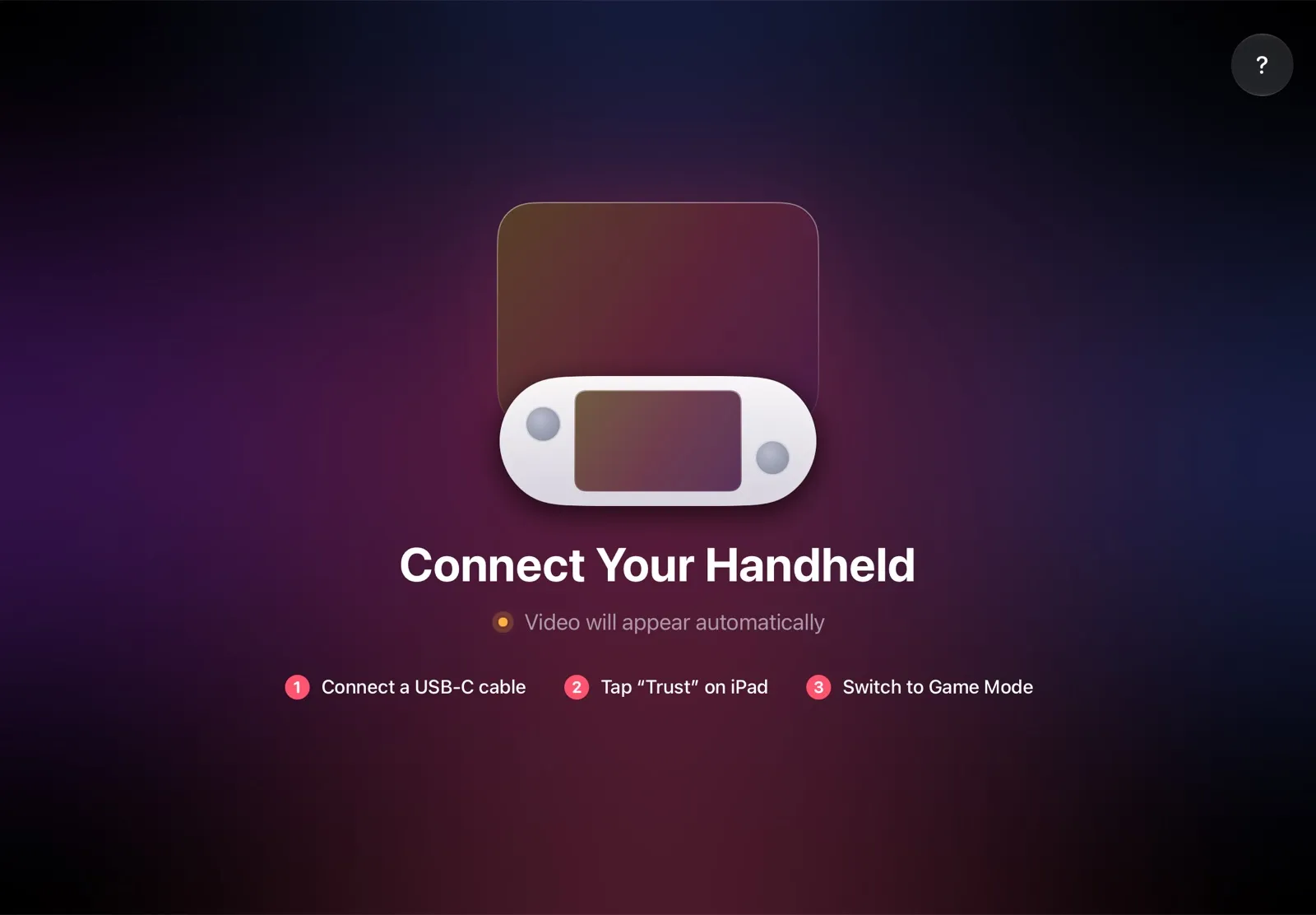
The installation guide has every step, and iPad as a monitor for Steam Deck compares the other ways to use an iPad as the screen.
Why it’s the simplest way:
- Nothing to buy. The app is free, and the cable is the one you already have.
- No dock, TV or controller. You hold the Deck and play with its controls, at a desk, on the couch or in bed.
- The big screen goes with you. The iPad fits in the same bag as the Deck, so you can play on it in a hotel or on a train.
- No Wi‑Fi lag. The picture goes over the cable, so a slow or busy network can’t add delay.
- Made for your devices. The Deck detects the iPad’s display and picks the resolution and frame rate for it.
Which big screen should you use?
- You own an iPad: TypeScreen — a big screen with nothing to buy, and the Deck stays in your hands.
- You play on the couch, next to a TV: the Valve dock or a hub with power passthrough, plus a controller.
- You play or work at a desk: a monitor through the dock, with Desktop Mode for a keyboard, a mouse and a second screen.
- No iPad, and you travel: a portable monitor. Deciding between the two? See iPad vs portable monitor.
FAQ
Does the Steam Deck have a docked mode?
Not as a separate mode. In Game Mode, the Deck switches the picture to the connected TV or monitor and turns off its own screen; performance stays the same as in handheld play.
What resolution does the Steam Deck output when docked?
The Deck picks the output resolution, or you choose it in Settings > Display; Valve’s dock goes up to 4K at 60 Hz or 1440p at 120 Hz. Games run at 1280 × 720 (1280 × 800 on 16:10 screens) unless you raise Maximum Game Resolution.
What’s the best Steam Deck TV resolution?
For most TVs: games at 1920 × 1080 if they hold a steady frame rate, and demanding ones at 1280 × 720 with FSR (the Sharp scaling filter). The output can stay at the TV’s own resolution.
How do I change the game resolution when docked?
For all games, set Maximum Game Resolution in Settings > Display; for one game, use the same setting in its Properties > General. If the game doesn’t switch by itself, pick the same resolution in its video settings.
Can the Steam Deck output 4K?
Yes. Valve rates its USB‑C port for 4K at 120 Hz or 8K at 60 Hz, and its dock for 4K at 60 Hz. At 4K, a game draws about eight times as many pixels as on the Deck’s screen, so keep demanding games at 1080p or lower.
Does the Steam Deck run better when docked?
No. Valve says docking is like plugging a USB‑C hub into a PC, and the Deck already runs at full performance in handheld play.
Why do games look blurry on my TV?
By default, they render at 1280 × 720 and the Deck stretches them to the TV’s resolution. Raise Maximum Game Resolution, or set Scaling Filter to Sharp (FSR) in the Quick Access Menu’s Performance tab.
Do you need the official Steam Deck Dock?
No. Valve says docked play works with third-party hubs and docks too. Look for HDMI or DisplayPort and USB‑C Power Delivery passthrough, so the Deck charges while you play.
Can I play on a big screen without a dock?
Yes. With TypeScreen, your iPad becomes the big screen over one USB‑C cable, and you keep playing with the Deck’s controls. A TV works without a dock too: a USB‑C to HDMI adapter is enough, but the Deck then runs on battery.