
AR Glasses for Steam Deck: XREAL, VITURE, Rokid or Your iPad?
AR glasses for Steam Deck plug into its USB‑C port and show your game on a big virtual screen that only you can see. They work because the Deck sends video out over USB‑C, and XREAL, VITURE, Rokid and RayNeo all list it as a compatible device. In their US stores in October 2026, the glasses cost from $199 on sale to $849 and weigh 62–91 g, and many need prescription inserts if you wear glasses. Below: current models and prices, how to connect and charge, the downsides, and how the iPad you may already own can be the Deck’s big screen for free.
| Way | What to buy | Cost | On your face | Who sees the game | Network while you play |
|---|---|---|---|---|---|
| TypeScreen with your iPad | nothing | free | nothing | you and anyone next to you | none |
| XREAL One | the glasses | $399 on sale ($499) | 84 g | only you | none |
| VITURE Luma | the glasses | $399 | 77 g | only you | none |
| RayNeo Air 4 Pro | the glasses | $299 | 76 g | only you | none |
| Rokid Max 2 | the glasses | $249 on sale ($399) | not listed | only you | none |
US prices as of October 2026 from the makers’ stores: XREAL, VITURE, RayNeo and Rokid, which doesn’t list the Max 2’s weight.
How AR glasses work with Steam Deck
Display glasses, sold as AR or XR glasses, hold two small OLED screens and optics that make the picture look like a big screen floating a few meters away. To the Deck, they’re an external display: its USB‑C port outputs video with DisplayPort Alt Mode, and the same cable powers the glasses, since they have no battery. Steam Deck glasses need no dock, no app and no network. In Game Mode, the picture moves to the glasses and the Deck’s own screen goes black, which Valve’s docking guide calls expected behavior with any external display.
What a “147-inch screen” really means
Makers describe the picture as a TV seen from across a room: XREAL quotes 147 inches at 4 m for the xbx a01+, VITURE 146 inches at a simulated 4 m for the Luma, and RayNeo 201 inches from 6 m for the GT. The inches depend on that distance, and some models let you change it: the XREAL 1S lets you set the screen anywhere from 31 to 500 inches and from 1 to 10 m away. RayNeo gives the Air 4 Pro’s picture as 201 inches on its product page and 135 inches in its Steam Deck guide.
What stays the same is the field of view: how much of your sight the picture covers, measured diagonally. By our math, a 50° field of view, which several of the models below have, is about what a 65-inch TV fills from 1.8 m (6 ft) away.
Best AR glasses for Steam Deck in 2026: models and prices
All connect to the Deck with one USB‑C cable, and their makers list the Steam Deck or USB‑C handhelds as compatible.
| Glasses | US price | Weight | Field of view | Virtual screen, maker’s figure | For nearsighted eyes |
|---|---|---|---|---|---|
| XREAL Air 2 | $199 on sale ($249) | 72 g | 46° | not listed | prescription inserts |
| XREAL xbx a01+ | $269 on sale ($359) | 62 g | 50° | 147 in at 4 m | prescription inserts |
| XREAL One | $399 on sale ($499) | 84 g | 50° | not listed | prescription inserts |
| XREAL 1S | $399 on sale ($449) | 82 g | 52° | 154 in at 4 m | prescription inserts |
| XREAL One Pro | $539 on sale ($649) | 87 g | 57° | 171 in at 4 m | prescription inserts |
| XREAL 1 Pro+ | $599 | not listed | 57° | 34–556 in at 1–10 m | prescription inserts |
| ROG XREAL R1 | $849 | 91 g | 57° | 171 in at 4 m | prescription inserts |
| VITURE Pro 2 | $299 | 63 g | 50° | 146 in | built-in dials, to −5.0D |
| VITURE Luma | $399 | 77 g | 50° | 146 in at 4 m | built-in dials, to −6.0D |
| VITURE Luma Pro | $499 | 79 g | 52° | 152 in at 4 m | built-in dials, to −4.0D |
| VITURE Beast | $549 | 88 g | 58° | 174 in at 4 m | prescription inserts |
| Rokid Max 2 | $249 on sale ($399) | not listed | 50° | not listed | built-in dials, to −6.00D |
| RayNeo Air 4 Pro | $299 | 76 g | 46° | 201 in | prescription inserts |
| RayNeo GT | $329 | 68 g | 46° | 136, 201 or 231 in | prescription inserts |
| RayNeo GT Max | $429 | 78 g | 59° | 227, 267 or 307 in | prescription inserts |
US prices as of October 2026 from the makers’ stores; specs from XREAL (One series, a01+, 1 Pro+, R1, Air 2, comparison), VITURE (Pro 2, Luma Pro, Beast, Beast overview), Rokid (FAQ) and RayNeo (Air 4 Pro, GT, GT Max).
XREAL and Steam Deck
XREAL lists the Steam Deck and Steam Deck OLED among devices that connect directly to the One, One Pro and 1S and the xbx a01+, names the Steam Deck for the ROG XREAL R1 and the older Air 2, and has a page on UltraWide on Steam Deck for the new 1 Pro+. The One series, the 1 Pro+ and the R1 can pin the picture in place on their own, which XREAL calls native 3DoF; the a01+ and the Air 2 keep it in front of you as you look around. None of XREAL’s glasses has built-in vision correction; XREAL sells prescription inserts from $49.90 on sale (regular $149.90).
VITURE and Steam Deck
VITURE lists the Steam Deck and Steam Deck OLED on the pages of the Pro 2, Luma, Luma Pro and Beast. The Pro 2 and the Luma models have built-in dials for nearsighted eyes: up to −6.0D on the Luma, −5.0D on the Pro 2 and −4.0D on the Luma Pro. The Beast has none, but it comes with a frame for prescription lenses, and it pins the picture in place without an app, which VITURE calls VisionPair 3DoF.
Rokid and RayNeo on Steam Deck
Rokid names the Steam Deck among the devices that connect to the Max 2 directly. It has a 50° field of view and built-in dials from 0.00D to −6.00D; for farsightedness or astigmatism, Rokid points to prescription lenses. RayNeo lists the Steam Deck among popular platforms for the Air 4 Pro, GT and GT Max, and recommends the Air 4 Pro in its Steam Deck guide. The GT and GT Max pin the picture in place on their own.
How to connect XREAL One and other AR glasses to Steam Deck
The steps are the same for the XREAL One on Steam Deck and for every other pair above:
- Plug the glasses’ USB‑C cable into the Deck. They have no battery, so the Deck powers them over the same cable.
- The picture moves to the glasses. In Game Mode, the Deck’s own screen goes black.
- To change the resolution or refresh rate, press the Steam button and open Settings > Display while the glasses are connected.
- For a sharper picture, raise Maximum Game Resolution there: by default, games run at 1280 × 720, or 1280 × 800 on 16:10 glasses. Steam Deck docked mode explains these settings.
On glasses without built-in 3DoF, the picture moves with your head; the community XR Gaming plugin for Decky Loader can pin it in place on most XREAL, VITURE and RayNeo models.
Charging the Deck while you play
The Deck has a single USB‑C port, and the glasses take it, so the Deck runs on battery while you play. The glasses draw a few watts: Rokid says the Max 2 takes 2 to 5 W on average from a phone, and XREAL rates the ROG XREAL R1 at under 3 W. To charge at the same time, connect the glasses and the Deck’s charger through a pass-through adapter: the XREAL Hub ($39.99), which XREAL lists for the One, One Pro and Air 2 and rates at 45 W for the Steam Deck; VITURE’s USB‑C to Glasses and Charging Adapter ($39 on sale) or Charging Adapter Ultra ($89); or RayNeo’s USB‑C Charging Adapter ($35).
Steam Deck AR glasses: the downsides
Before you buy AR glasses for Steam Deck, weigh these:
- The price. From $199 on sale to $849 for the glasses, plus $35–89 for a charging adapter if you want to play plugged in.
- Weight on your face. 62–91 g rests on your nose and ears for the whole session.
- Breaks. For eye health, XREAL recommends a 10-minute break for every 45 to 60 minutes of continuous use with its ROG XREAL R1, and VITURE lists 3–4 hours as the suggested wearing time for its glasses.
- A screen for one. Only the person wearing them sees the game.
- Smaller than the inches suggest. At 46–59°, the picture covers about as much of your view as a big TV across the room, not your whole field of vision.
- Prescriptions cost extra. XREAL and RayNeo glasses and the VITURE Beast need inserts. The dials on the other VITURE models and the Rokid Max 2 are for nearsightedness only, up to −4.0 to −6.0D.
Use the iPad you already own
TypeScreen, our app, turns your iPad into a wired screen for Steam Deck and other SteamOS handhelds: the Deck encodes the picture in hardware and sends it to the iPad over one USB‑C cable, the same cable you charge the iPad with. You keep playing with the Deck’s own controls, the iPad sits in front of you on a table or a stand, and anyone next to you can watch. iPads range from 8.3 inches (iPad mini) to 13 inches (iPad Air and iPad Pro).
The game keeps the Deck’s 16:10 shape, with thin bars at the top and bottom of the iPad screen, and a pinch fills the whole screen. On an 11-inch iPad, the picture is about twice the area of the Deck’s own screen; on a 13-inch iPad, close to three times.

Screens to scale from Valve and Apple specs, October 2026. More on the Deck’s own screen: Steam Deck screen size.
What you need: an iPad with iPadOS 17 or later, a Steam Deck or another SteamOS handheld in Game Mode, and a USB‑C cable.
How to set it up:
- Install TypeScreen on the iPad. It’s free on the App Store.
- Install TypeScreen on the Deck from the iPad app — once, at home, with both devices on Wi‑Fi and the Deck online. The app walks you through turning on Developer Mode and selecting “Pair new host”.
- Connect the cable and tap Trust on the iPad. In Game Mode, your game appears on the iPad automatically.
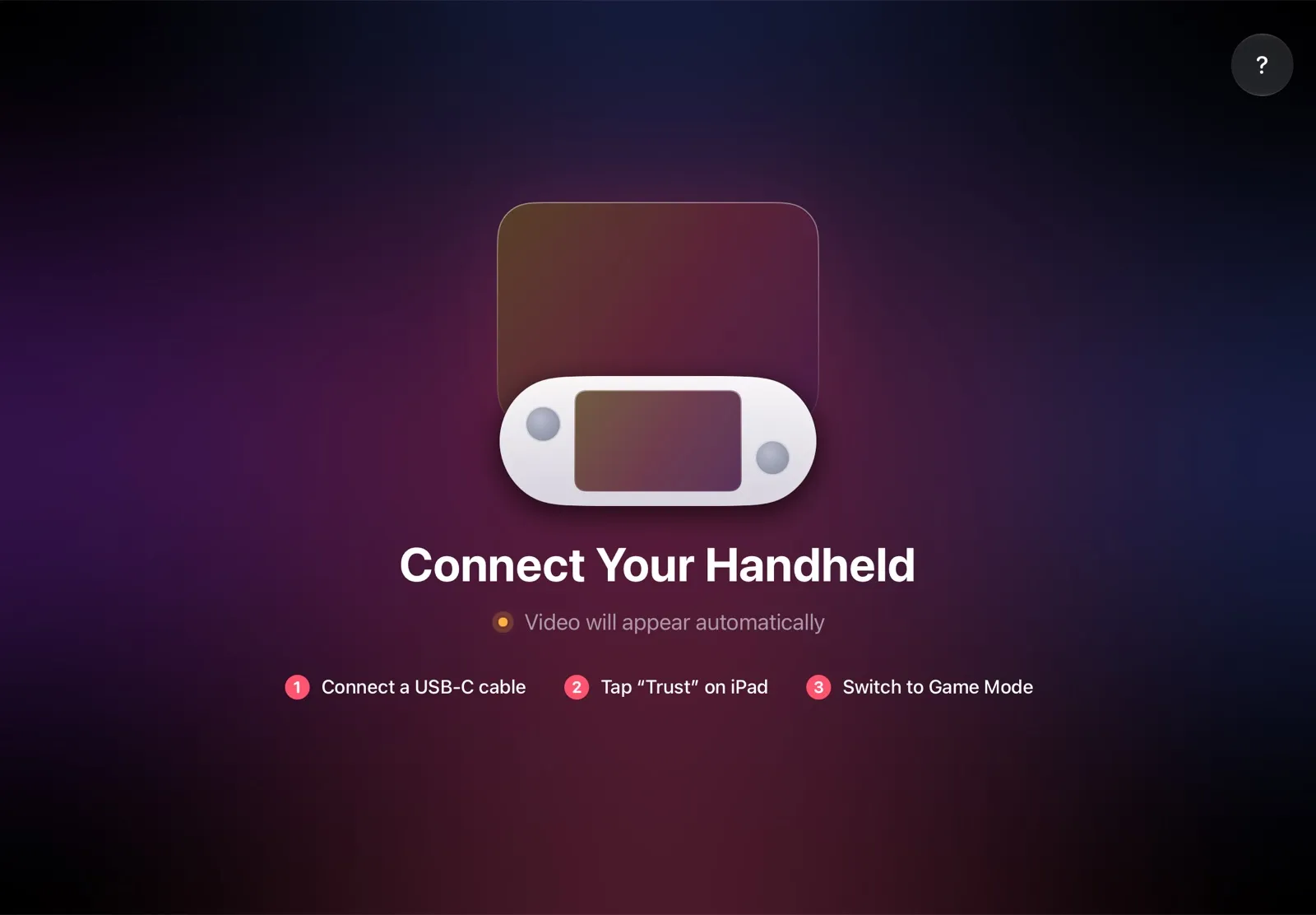
The installation guide has every step, and iPad as a monitor for Steam Deck compares the other ways to use an iPad as the screen.
Why it’s the simplest way:
- Nothing to buy. The app is free, and the cable is the one you already have.
- Nothing on your face. The screen is on the table, and you wear your own glasses if you need them.
- A screen you can share. Whoever sits next to you sees the game too.
- The big screen goes with you. The iPad fits in the same bag as the Deck, so you can play at a desk, in a hotel or on a train.
- One cable, no network. The picture goes over the cable, so you don’t need Wi‑Fi while you play.
- Made for your devices. The Deck detects the iPad’s display and picks the resolution and frame rate for it.
Which big screen should you use?
- You own an iPad: TypeScreen — a bigger screen with nothing to buy and nothing to wear, at home or away.
- You play alone and want a huge picture that fits in a small case: AR glasses for Steam Deck. If you’re nearsighted, the VITURE Pro 2 and Luma models and the Rokid Max 2 have built-in dials; with the others, plan for inserts.
- You play at home, next to a TV: a USB‑C to HDMI adapter or a dock. See how to connect Steam Deck to a monitor or TV.
- No iPad, and others want to watch: a portable monitor. Compare first: iPad vs portable monitor.
FAQ
Do AR glasses work with Steam Deck?
Yes. The Deck outputs video over USB‑C, and XREAL, VITURE, Rokid and RayNeo list it as compatible. Plug in the glasses, and the picture moves to them.
What are the best AR glasses for Steam Deck?
It depends on your eyes and your budget. In October 2026, the XREAL Air 2 was $199 and the Rokid Max 2 $249, both on sale; the XREAL xbx a01+ weighs 62 g; the VITURE Beast and RayNeo GT Max have 58–59° fields of view; and the VITURE Pro 2 and Luma models and the Rokid Max 2 have dials for nearsighted eyes. If you own an iPad, TypeScreen makes it the Deck’s big screen for free; it’s available on the App Store.
Which glasses are compatible with Steam Deck?
Display glasses with a USB‑C DisplayPort connection, sold as AR or XR glasses. XREAL, VITURE, Rokid and RayNeo all list the Steam Deck for current models, from the XREAL Air 2 ($199 on sale) to the $849 ROG XREAL R1.
Do AR glasses drain the Steam Deck battery?
The glasses have no battery, so the Deck powers them: 2 to 5 W for the Rokid Max 2 and under 3 W for the ROG XREAL R1, by the makers’ figures. To charge the Deck while you play, use a pass-through adapter such as the $39.99 XREAL Hub.
How do I connect XREAL One to Steam Deck?
Plug its cable straight into the Deck’s USB‑C port: XREAL lists the Steam Deck and Steam Deck OLED among devices that connect directly, and the glasses turn on by themselves. To charge the Deck at the same time, connect both through the XREAL Hub.
Is the XREAL One Pro good for Steam Deck?
XREAL lists the Steam Deck as compatible. The One Pro has a 57° field of view, a 120 Hz refresh rate and a native 3DoF mode, and it weighs 87 g. It was $539 on sale, down from $649, in October 2026, and needs prescription inserts if you wear glasses.
XREAL or VITURE for Steam Deck?
Both list the Steam Deck. The main difference is vision: most VITURE models have built-in dials for nearsighted eyes, while XREAL glasses take prescription inserts. XREAL’s One series, 1 Pro+ and R1 and VITURE’s Beast pin the picture in place on their own. Prices overlap: the XREAL models above cost $199 (the Air 2, on sale) to $849, the VITURE ones $299–549.
Can you use AR glasses if you wear glasses?
Yes, with prescription inserts or built-in dials. XREAL sells inserts from $49.90 on sale, and RayNeo points to its lens partner, Lensology. VITURE’s Pro 2 and Luma models and the Rokid Max 2 adjust for nearsightedness, to between −4.0 and −6.0D.
Are AR glasses worth it for Steam Deck?
If you play alone and travel light, they give you a big private picture for $199 (on sale) to $849. If you already own an iPad, TypeScreen makes it the Deck’s big screen for free, with nothing on your face and a screen others can see.
Do AR glasses work with ROG Ally and Legion Go S?
Yes. The glasses need USB‑C with DisplayPort output: ASUS lists it on both USB‑C ports of the ROG Xbox Ally X, and Lenovo on both ports of the Legion Go S. XREAL lists ROG handhelds such as the ROG Ally for its glasses. ROG Ally screen size and Legion Go S screen size compare their screens with the iPad’s.