
ROG Ally SteamOS: How to Install It and What Works (2026)
ROG Ally SteamOS support comes from Valve itself: the ROG Ally and ROG Ally X are on its list of devices with beta SteamOS support, and SteamOS 3.8 added controller and TDP support for the ROG Xbox Ally and Xbox Ally X. You install it yourself, from Valve’s free image on a USB drive, and it replaces the Windows 11 that every Ally ships with. Here’s how to install it, what works, how it compares with Bazzite, how to get Windows back, and how to play on a bigger screen, including the iPad you may already own.
| Big screen | What to buy | What you connect | Network while you play | Cost | Works away from home |
|---|---|---|---|---|---|
| TypeScreen with your iPad | nothing | the iPad and one USB‑C cable | none | free | yes |
| TV with a USB‑C to HDMI adapter | the adapter | the adapter, an HDMI cable and the charger | none | $19.99 (Plugable) | only where there’s a TV you can use |
| ROG Gaming Charger Dock | the dock | the dock and an HDMI cable | none | $44.99 on sale ($64.99) | only where there’s a TV you can use |
| Steam Link on a TV or a box | a box, if the TV can’t run Steam Link | nothing: the game streams to the TV | the same home network, Wi‑Fi or Ethernet | free, plus a box if needed | in practice, only at home |
US prices as of October 2026, from the Plugable and ASUS stores.
Does the ROG Ally support SteamOS?
Yes, in beta. Valve’s SteamOS installation guide, updated September 23, 2026, sorts devices into two columns. The official one, “Powered by SteamOS,” lists only the Steam Deck, Steam Machine, Steam Frame and Lenovo Legion Go S. “Beta SteamOS Support” names the ASUS ROG Ally and ROG Ally X, next to the original Legion Go and “Other AMD powered handhelds.”
| Model | SteamOS support from Valve |
|---|---|
| ROG Ally (2023) | beta, named in Valve’s list |
| ROG Ally X (2024) | beta, named in Valve’s list |
| ROG Xbox Ally (2025) | beta, as an AMD handheld; controls, TDP control and speakers since SteamOS 3.8 |
| ROG Xbox Ally X (2025) | the same as the ROG Xbox Ally |
| ROG Xbox Ally X20 (2026) | beta, as an AMD handheld; not named in Valve’s release notes as of October 2026 |
Valve adds that Steam Support may be limited in what it can troubleshoot on hardware outside the Powered by SteamOS list, and asks for bug reports on SteamOS’s GitHub. Every model on both lists: SteamOS handhelds.
ROG Xbox Ally SteamOS support
Valve’s list doesn’t name the ROG Xbox Ally or Xbox Ally X, but both run AMD chips, the Ryzen Z2 A and the Ryzen AI Z2 Extreme, so they count as “Other AMD powered handhelds.” SteamOS 3.8, stable since June 18, 2026, added controller, TDP control and speaker support for the ROG Xbox Ally series. Valve’s current recovery image, built in July 2026, installs SteamOS 3.8.14, so it already has that support. The ROG Xbox Ally X20 has the same Ryzen AI Z2 Extreme, but no Valve release note names it yet.
How to install SteamOS on ROG Ally
A ROG Ally SteamOS install wipes the whole drive, Windows included, so copy anything you want to keep first. While Windows is still there, also run the Update Center in Armoury Crate SE: ASUS ships driver and firmware updates through this Windows app (ASUS).
What you need: a USB drive of 8 GB or more (USB‑C, or USB‑A with an adapter), the Ally’s charger, and a computer to write the drive, which can be the Ally itself before you wipe Windows.
1. Make the USB drive
- Download Valve’s SteamOS image for Steam Deck, Steam Machine and PC, about 3.4 GB.
- Write it to the USB drive with Rufus on Windows or Balena Etcher on a Mac or Linux, as Valve suggests. This erases the drive.
2. Turn off Secure Boot
Valve says most devices other than the Steam Deck need Secure Boot off to start from a USB drive. On the ROG Ally:
- Turn the Ally off. Press the power button, then hold volume down (−) until the BIOS appears (ASUS). Valve’s guide says volume up instead: that opens a short boot menu, where Enter Setup leads to the same BIOS (Windows Central).
- Press Y for Advanced Mode, then press right on the D‑pad until you reach the Security tab.
- Open Secure Boot and set Secure Boot Control to Disabled.
- Press B, go to the Save & Exit tab and choose Save Changes and Exit.
3. Start the Ally from the USB drive
- Plug in the USB drive. On the original ROG Ally, it takes the only USB‑C port, so charge the Ally first or use a USB‑C hub.
- Start the Ally the same way, power button and then volume down. In the BIOS, choose Boot Menu and select the USB drive, listed as UEFI with the drive’s name.
- The screen goes dark while the installer starts. Valve’s advice: give it a minute.
4. Install and set up SteamOS
- On the installer’s desktop, double-tap Wipe Device & Install SteamOS and confirm with Proceed.
- When it’s done, choose Proceed to restart, and remove the USB drive.
- Pick your language and Wi‑Fi network and sign in to Steam. Then open Settings > System and install the latest update.
Windows Central’s walkthrough shows these screens on a ROG Ally.
Is SteamOS good on ROG Ally? What works and what doesn’t
In Game Mode, SteamOS on a ROG Ally runs the same Steam interface as on a Steam Deck. Where things stood in October 2026:
- Steam and Quick Access buttons. On the ROG Ally and Ally X, Command Center works as the Steam button and Armoury Crate opens the Quick Access Menu, as mapped by InputPlumber, the input service in SteamOS 3.8.
- Back buttons. Valve fixed the ROG Ally’s grip buttons in SteamOS 3.7.13, and on the original Ally after sleep in 3.7.15. XDA’s May 2026 test of the Ally X found them working, along with TDP control and VRR.
- TDP. The TDP limit is in the Quick Access Menu’s Performance tab, as on a Steam Deck; on the Xbox Ally models, since SteamOS 3.8.
- Fingerprint reader. It doesn’t work on SteamOS, XDA reports, though SteamOS starts straight into Game Mode, with nothing to unlock.
- Sleep and fans. SteamOS 3.9, stable since October 23, 2026, works around a firmware issue on some ASUS devices that ran the fans too fast after waking from sleep.
- Windows software. Armoury Crate SE and the Xbox app stay behind: the Xbox PC app, which runs PC Game Pass games, needs Windows 10 or 11 (Xbox).
- Games. Valve says the vast majority of the Steam library runs on SteamOS through Proton, and its Verified program flags games that don’t run well. Other launchers install from Desktop Mode.
Bazzite vs SteamOS on the ROG Ally
Bazzite is a community-made Linux system whose handheld image, Bazzite-Deck, runs Steam’s Game Mode like SteamOS. What each project says, as of October 2026:
| SteamOS | Bazzite | |
|---|---|---|
| Made by | Valve | a community project |
| Based on | Arch Linux | Fedora Linux |
| ROG Ally support | beta: the Ally and Ally X by name, the Xbox Ally models as AMD handhelds | lists the ROG Ally and Ally X among the handhelds it works on |
| Secure Boot | off, on most devices other than the Steam Deck | can stay on after you enroll Bazzite’s key |
| Windows on the same Ally | Valve’s installer wipes the whole drive | dual boot with Windows is supported |
| Updates | from Valve, with Stable, Beta and Preview channels; SteamOS can roll back to the previous version, Valve says | the previous version stays in the boot menu; on handhelds, it rolls back by itself after 3 failed boots |
Sources: Valve’s installation guide, recovery guide and SteamOS page, and Bazzite’s SteamOS comparison and Secure Boot guide. Bazzite’s ROG Ally page lists known issues too, such as a fingerprint driver that may not work.
How to go back to Windows from SteamOS
ASUS restores Windows from the cloud, right from the Ally’s BIOS, with Cloud Recovery:
- Plug in the charger and have your Wi‑Fi password ready.
- Press the power button and hold volume down to open the BIOS. Check the BIOS clock: ASUS says a wrong time can make Cloud Recovery unavailable.
- Press Y for Advanced Mode, go to the Advanced tab and select ASUS Cloud Recovery. Agree to the terms and connect to Wi‑Fi.
- Leave it alone. ASUS says it takes about 1–3 hours, with restarts and a black screen along the way, and it erases the whole drive, SteamOS included.
ASUS warns that Wi‑Fi 6E devices, every Ally included, may not connect to a Wi‑Fi 7 router during Cloud Recovery: use another access point or a phone hotspot. ASUS also explains how to reinstall Windows from a USB drive made with Microsoft’s tool.
Play your SteamOS Ally on a TV
TV with a USB‑C to HDMI adapter
Every Ally outputs video over USB‑C, ASUS says. The Ally X and all three ROG Xbox Ally models have two USB‑C ports with video and power, so the adapter goes in one and the charger in the other. The original ROG Ally (2023) has one, so with an adapter alone it plays on battery. A plain adapter such as Plugable’s does the job, and black-screen fixes are the same as on a Steam Deck: how to connect Steam Deck to a monitor or TV.
ROG Gaming Charger Dock
ASUS’s ROG Gaming Charger Dock is a 65 W charger with HDMI 2.0, up to 4K at 60 Hz or 1080p at 120 Hz. It charges the Ally and sends the picture to the TV over one USB‑C cable, so even the single-port original Ally charges while it plays on the TV. It was $44.99 on sale in ASUS’s US store in October 2026.
Downsides of an adapter or a dock:
- You play where the TV is, and only when it’s free.
- The cable ties the Ally to the TV: from the couch, you need a long cable or a separate controller.
Steam Link on a TV
With SteamOS, the Ally can stream games over your home network to Valve’s free Steam Link app on a TV or a box such as Apple TV, Google TV or Fire TV. Turn on Remote Play in the Ally’s settings, open Steam Link on the TV and pair them with the PIN it shows. Which TVs and boxes run Steam Link: cast Steam Deck to TV.
Downsides:
- The delay depends on your network. On an ordinary home Wi‑Fi it’s very noticeable; it gets low only on a very fast, stable network, with the Ethernet Valve recommends.
- The Ally and the TV need one local network, so in practice it’s a home setup.
- If your TV can’t run Steam Link, it’s a box to buy.
Play your SteamOS Ally on your iPad
TypeScreen, our app, turns your iPad into a wired screen for a ROG Ally with SteamOS: the Ally encodes the picture in hardware and sends it to the iPad over one USB‑C cable, the same cable you charge the iPad with. You keep playing with the Ally’s own controls. On an 11-inch iPad, the game has about 2.1 times the area of a 7-inch Ally screen; ROG Ally screen size puts the Ally next to the iPad mini and the 11- and 13-inch models, to scale. We build and test TypeScreen on a ROG Xbox Ally X running SteamOS.
What you need: an iPad with iPadOS 17 or later, a ROG Ally with SteamOS in Game Mode, and a USB‑C cable. Other ways to put the Ally on an iPad, Windows included: ROG Ally iPad monitor.
How to set it up:
- Install TypeScreen on the iPad. It’s free on the App Store.
- Install TypeScreen on the Ally from the iPad app — once, at home, with both devices on Wi‑Fi and the Ally online. The app walks you through turning on Developer Mode and selecting “Pair new host”.
- Connect the cable and tap Trust on the iPad. In Game Mode, your game appears on the iPad automatically.
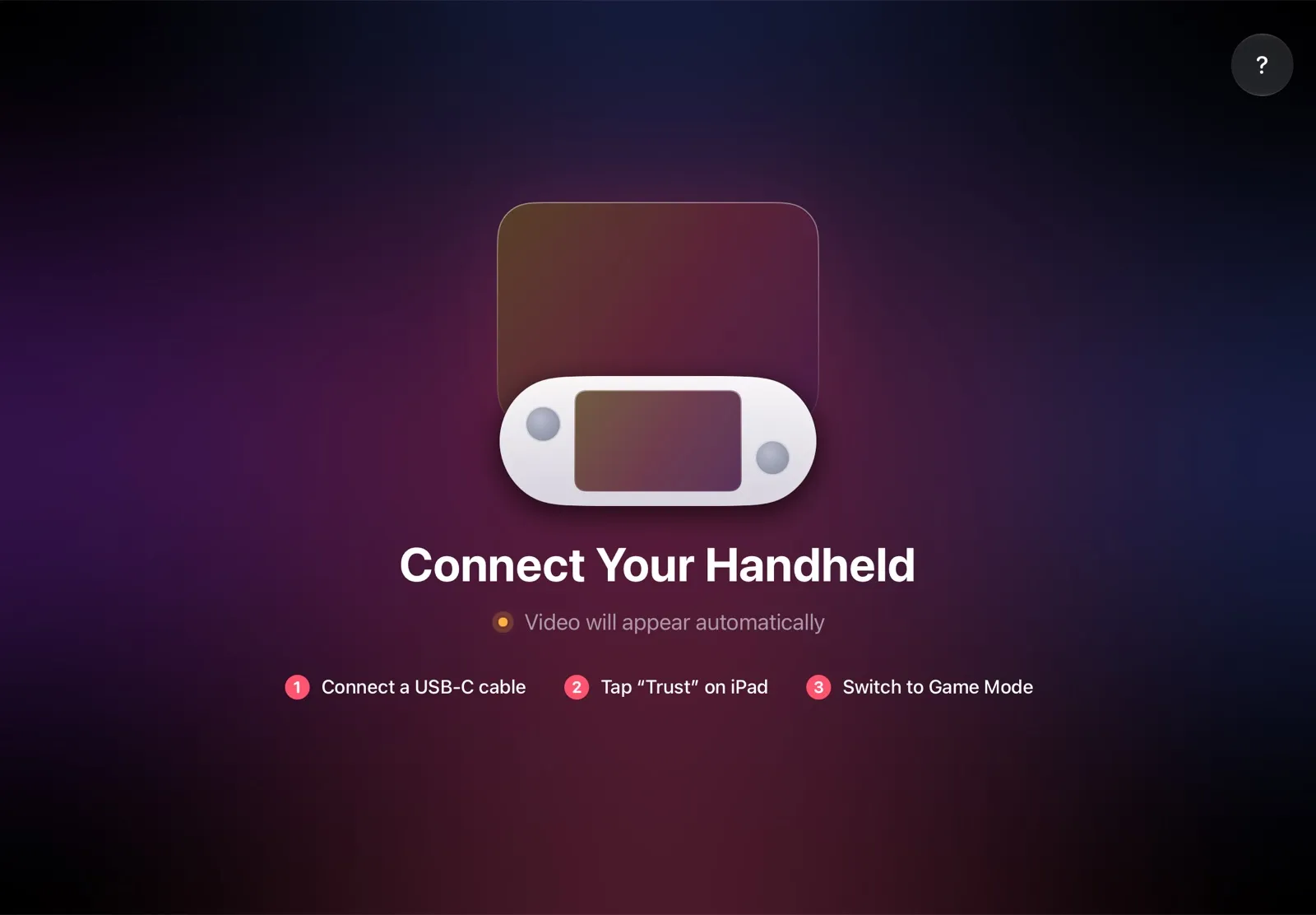
The installation guide has every step. Have a Steam Deck too? It works the same way: iPad as a monitor for Steam Deck.
Why it’s the simplest way:
- Nothing to buy. The app is free, and the cable is the one you already have.
- The big screen goes with you. The iPad fits in the same bag as the Ally, so you can play at a desk, in a hotel or on a train.
- One cable, no network. The picture goes over the cable, so you don’t need Wi‑Fi while you play, and a slow or busy network can’t add delay.
- Made for your devices. The Ally detects the iPad’s display and picks the resolution and frame rate for it.
Which should you use?
- You own an iPad and want a bigger screen: SteamOS with TypeScreen, one USB‑C cable and nothing to buy.
- You want Valve’s own system and play mostly Steam games: SteamOS from Valve’s image.
- You want Windows on the same Ally, or Secure Boot on: Bazzite.
- You play PC Game Pass or rely on Armoury Crate SE: keep Windows.
- You play at home, next to a TV: a USB‑C to HDMI adapter or the ROG Gaming Charger Dock.
FAQ
Can you install SteamOS on a ROG Ally?
Yes. ROG Ally SteamOS support is in Valve’s beta tier, with the ROG Ally and ROG Ally X named and the Xbox Ally models counted as AMD handhelds. Valve’s image is free, and installing it replaces Windows.
Is SteamOS good on the ROG Ally?
For a Steam library, the essentials work: Game Mode, the Steam and Quick Access buttons, the back buttons and TDP control, according to Valve and XDA. The fingerprint reader doesn’t, and Windows apps such as Armoury Crate SE and the Xbox app aren’t there.
Does SteamOS work on the ROG Xbox Ally X?
Yes. SteamOS 3.8, stable since June 2026, added controller, TDP control and speaker support for the ROG Xbox Ally and Xbox Ally X, and Valve’s current recovery image, built in July 2026, already includes it.
Is ROG Ally X SteamOS support the same as the original Ally’s?
Yes. Valve names both in its beta list, and the steps are the same; with two USB‑C ports, the Ally X takes the USB drive and the charger at once.
Bazzite or SteamOS for the ROG Ally?
SteamOS is Valve’s own system and replaces Windows. Bazzite is a community project that can share the drive with Windows and keep Secure Boot on. Both run Steam’s Game Mode.
Do you need to turn off Secure Boot for SteamOS?
Yes, on the ROG Ally: in the BIOS, press Y for Advanced Mode, then set Security > Secure Boot > Secure Boot Control to Disabled.
Can you dual-boot SteamOS and Windows on a ROG Ally?
Not with Valve’s installer: Wipe Device & Install SteamOS erases the whole drive. Bazzite lists dual boot with Windows among its features.
Can you install SteamOS on a ROG Ally without a USB drive?
Not with Valve’s method: the installer starts from a USB drive of 8 GB or more with Valve’s image on it.
How do you go back to Windows from SteamOS?
With ASUS Cloud Recovery in the BIOS: hold volume down at power-on, press Y, open ASUS Cloud Recovery and connect to Wi‑Fi. It restores the Ally to factory condition in about 1–3 hours, erasing SteamOS.
Can I use my iPad as a ROG Ally screen with SteamOS?
Yes. Once your ROG Ally SteamOS install is done, TypeScreen connects the Ally to an iPad with iPadOS 17 or later over one USB‑C cable. The app is free on the App Store.