
ROG Ally iPad Monitor: 5 Ways to Use Your iPad (2026)
A ROG Ally iPad monitor setup puts your game on the bigger screen you may already carry, but a cable alone won’t do it: the USB‑C ports on the Ally and the iPad both send video out, so something has to bring the picture into the iPad. With SteamOS on the Ally, TypeScreen does that over one USB‑C cable. On Windows, the iPad becomes a second display with Duet Display, spacedesk or ASUS GlideX. A capture card with the Orion app works on either system, and Steam Link or Moonlight stream the game over your network. Here’s what each way needs, what it costs and how to set it up.
| Way | What you need | Network while you play | Cost |
|---|---|---|---|
| TypeScreen | SteamOS on the Ally, your iPad and one USB‑C cable | none | free |
| Duet, spacedesk or GlideX | Windows on the Ally, the app on both devices, a USB‑C cable | none with a cable | free (spacedesk, GlideX) or from $3.99 a month (Duet) |
| Capture card + Orion | a capture card, a USB‑C to HDMI adapter or dock, an HDMI cable | none | from about $35 in parts |
| Steam Link | the Steam Link app on the iPad | one local network, Wi‑Fi or Ethernet | free |
| Moonlight | Sunshine or Apollo on the Ally, Moonlight on the iPad | one local network, Wi‑Fi or Ethernet | free |
US prices as of October 2026.
Can you use an iPad as a monitor for ROG Ally?
Yes, but not the way a regular monitor works. Every ROG Ally sends video out over USB‑C with DisplayPort, according to ASUS’s spec pages for the ROG Ally, ROG Ally X, ROG Xbox Ally and ROG Xbox Ally X. The iPad’s USB‑C port is built to send video out too: Apple describes it as a way to connect external displays. Connect two video outputs, and neither shows the other’s picture.
What an iPad can take in is a USB camera: since iPadOS 17, apps can use external UVC cameras, and an HDMI capture card is one of them. So every way to use an iPad as a ROG Ally screen either sends the picture as data, over the cable or a network, or turns the Ally’s video output into a camera feed with a capture card. Which ones you can use depends on whether your Ally runs Windows, as it ships, or SteamOS.
ROG Ally on Windows: use your iPad as a monitor with Duet, spacedesk or GlideX
For a ROG Ally iPad monitor on Windows, an app on both devices makes the iPad a second display, over a USB‑C cable or Wi‑Fi. Windows then treats the iPad like another monitor: extend the desktop onto it, or press Windows key + P and choose Duplicate to show the same picture on both screens, or Second screen only to play on the iPad alone, as Microsoft explains. Without a keyboard, the same choice is in Settings > System > Display.
| App | Connection to the iPad | Price | What the Ally needs |
|---|---|---|---|
| Duet Display | USB cable; Wi‑Fi with the Duet Air plan | Duet Starter: $3.99 a month or $39.99 a year | Duet for Windows (Windows 10 or later) |
| spacedesk | USB cable or local network | free for personal use | the spacedesk driver; iTunes for a cable connection |
| ASUS GlideX | USB cable or Wi‑Fi | free | GlideX for Windows; the 64-bit iTunes for a cable connection |
Prices are from the US App Store in October 2026. Duet’s cheapest plan, Duet Starter, covers a wired second display on Windows and Mac; the Duet app itself is free. spacedesk is free for personal use, and its manual explains the cable connection to an iPad. GlideX is ASUS’s own app: its Screen Extend mode turns a tablet into a secondary display, and ASUS explains how to connect an iPad by cable. Splashtop Wired XDisplay, an older option, hasn’t updated its iPad app since January 2017.
Downsides:
- They make the iPad a second screen for the Windows desktop. For games, ASUS suggests the extended screen for guides, maps or companion apps while you play on the other one.
- Duet is a subscription, and spacedesk and GlideX need iTunes on the Ally for a cable connection.
- None of them has a SteamOS version. Duet’s computer app is for Windows and Mac only, and Duet Display for Steam Deck explains why the same goes for every SteamOS handheld.
Use your iPad as an HDMI monitor for ROG Ally: a capture card and Orion
A capture card turns HDMI into a USB camera feed, and an iPad app shows it full screen. Lux, the maker of the Orion app, names the ROG Ally among the devices it works with. To the Ally, the card is just an HDMI display, like a TV, so this ROG Ally iPad monitor setup needs no app on the Ally.
What you need:
- an iPad with USB‑C and iPadOS 17 or later;
- HDMI for the Ally: a USB‑C to HDMI adapter, such as Plugable’s ($19.99), or ASUS’s ROG Gaming Charger Dock ($44.99 on sale, down from $64.99), which also charges the Ally;
- a capture card that works as a USB camera (UVC): the one Orion recommends is $14.99, and Genki’s ShadowCast 3 is $59.99;
- an HDMI cable;
- a viewer app: Orion is free, with Orion Pro as a $9.99 one-time purchase, and Genki Studio is free too.
How to set it up: connect the Ally to the adapter or dock, the HDMI cable from there to the capture card, and the card to the iPad. Open the viewer app and allow camera access: to iPadOS, the card is a camera.
Downsides:
- Three parts to buy and carry, from about $35 for the adapter and the card, US prices as of October 2026.
- It needs an iPad with USB‑C: Orion doesn’t work with iPads that have a Lightning port, Lux says.
Looking for an Orion app alternative without the extra parts? TypeScreen, below, needs only a USB‑C cable.
Stream ROG Ally to iPad with Steam Link or Moonlight
Streaming apps send the game over a network instead of a cable, on Windows and SteamOS alike.
Steam Link. Valve’s free app connects your iPad to any computer that’s running Steam, and the Ally is one. On the Ally, check that Enable Remote Play is on in Steam’s Settings > Remote Play. Then open Steam Link on the iPad, select the Ally and enter the PIN that Steam Link shows into Steam on the Ally.
Moonlight. Moonlight is a free, open-source client, and the Ally runs the server. On Windows, that’s Sunshine or its fork Apollo, which can create a virtual display that matches the iPad’s resolution. On SteamOS, the Decky Sunshine plugin installs and starts Sunshine from Game Mode, and it needs the Decky Loader plugin system first.
Downsides:
- The delay depends on your network. On an ordinary home Wi‑Fi it’s very noticeable, as it was in our own tests; it gets low only on a very fast, stable network. Valve recommends a wired connection for the computer running Steam and 5 GHz Wi‑Fi for the iPad, and Moonlight highly recommends 5 GHz Wi‑Fi.
- The Ally and the iPad need one local network, and Valve says Remote Play, which Steam Link uses, isn’t supported on public networks, such as hotel or train Wi‑Fi, or on networks that require a log-in. Playing where there’s no Wi‑Fi? Steam Link without Wi‑Fi covers the wired options.
- On SteamOS, Moonlight takes the most setup: Decky Loader installs from Desktop Mode with your admin password, and Decky Sunshine runs Sunshine as root.
ROG Ally iPad monitor over one USB‑C cable: TypeScreen
TypeScreen, our app, turns your iPad into a wired screen for a ROG Ally with SteamOS: the Ally encodes the picture in hardware and sends it to the iPad over one USB‑C cable, the same cable you charge the iPad with. There’s no network in between while you play, and you keep playing with the Ally’s own controls.
What you need: an iPad with iPadOS 17 or later, a ROG Ally with SteamOS in Game Mode, and a USB‑C cable. ROG Ally models ship with Windows 11; Valve lists the ROG Ally and ROG Ally X under beta SteamOS support and explains how to install it there, and SteamOS 3.8 added controller and TDP control support for the ROG Xbox Ally and ROG Xbox Ally X. The install, step by step: ROG Ally SteamOS. We build and test TypeScreen on a ROG Xbox Ally X running SteamOS.
How to connect ROG Ally to iPad:
- Install TypeScreen on the iPad. It’s free on the App Store.
- Install TypeScreen on the Ally from the iPad app — once, at home, with both devices on Wi‑Fi and the Ally online. The app walks you through turning on Developer Mode and selecting “Pair new host”.
- Connect the cable and tap Trust on the iPad. In Game Mode, your game appears on the iPad automatically.
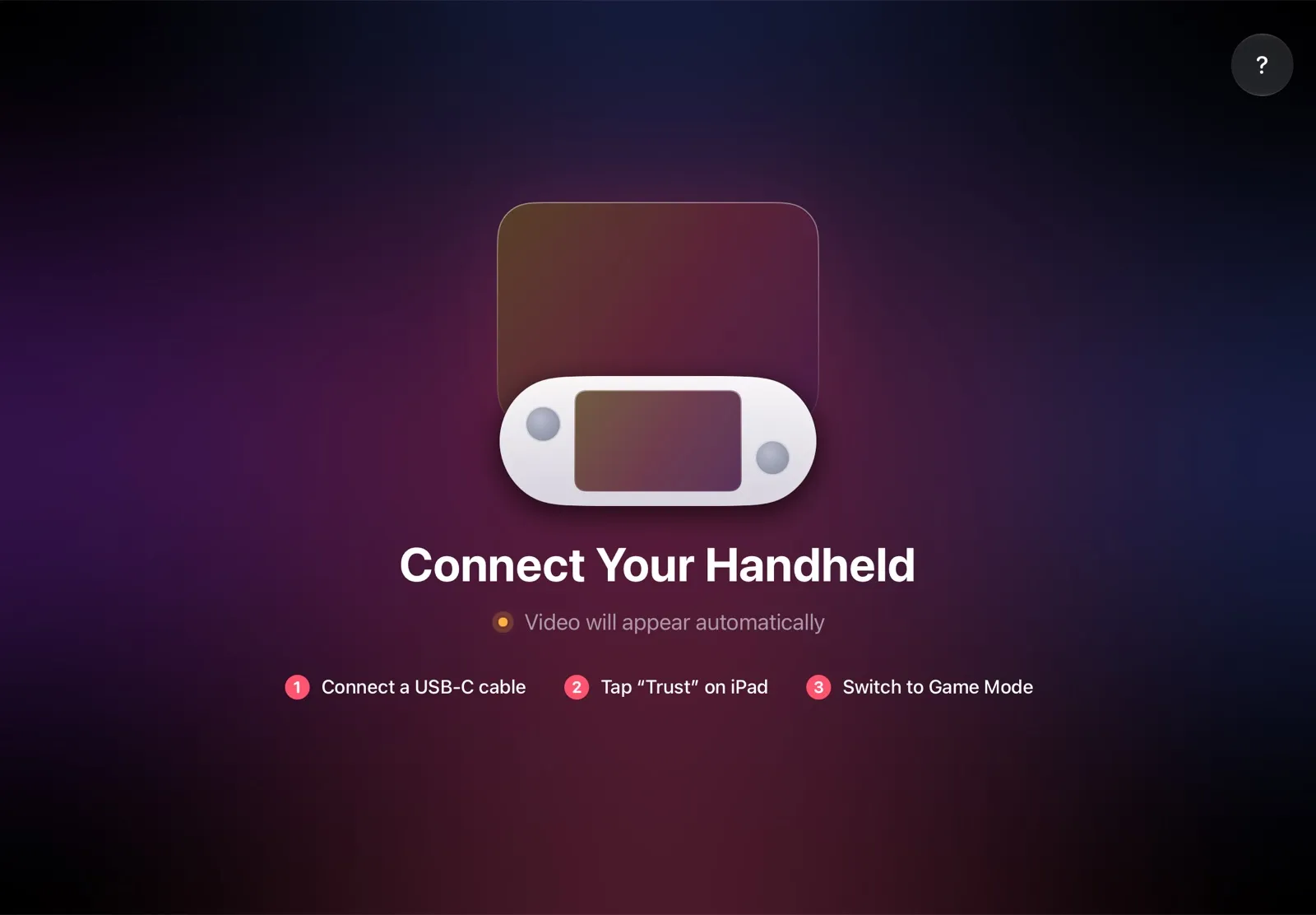
The installation guide has every step. TypeScreen works the same way on a Steam Deck, and iPad as a monitor for Steam Deck compares the ways to use an iPad as the screen there.
Why it’s the simplest way:
- Nothing to buy. The app is free, and the cable is the one you already have: no capture card, no adapter, no subscription.
- Your game, not a desktop. The iPad shows what you play in Game Mode, and the Ally stays in your hands.
- No Wi‑Fi lag. The picture goes over the cable, so a slow or busy network can’t add delay.
- The big screen goes with you. The iPad fits in the same bag as the Ally, so you can play at a desk, in a hotel or on a train.
- Made for your devices. The Ally detects the iPad’s display and picks the resolution and frame rate for it.
ROG Ally iPad screen: how much bigger is the picture?
iPads range from 8.3 inches (iPad mini) to 13 inches (iPad Air and iPad Pro). With TypeScreen, the game keeps the Ally’s 16:9 shape, with bars at the top and bottom of the iPad screen. On an 11-inch iPad, the picture has about 2.1 times the area of the Ally’s 7-inch screen; on a 13-inch iPad, about 2.9 times. Even an iPad mini gives about 1.3 times the area. A pinch fills the whole iPad screen.

Screens to scale from ASUS and Apple specs, October 2026. The 11-inch figures are the same for the iPad and the 11-inch iPad Air; the iPad Pro screens give ×2.3 (11-inch) and ×2.9 (13-inch). Every Ally model is compared in ROG Ally screen size.
Which ROG Ally iPad monitor setup should you use?
- Your Ally runs SteamOS: TypeScreen, with one USB‑C cable and nothing to buy.
- Your Ally runs Windows, and you want to play on the iPad: switch to SteamOS and use TypeScreen, or buy a capture card if you stay on Windows.
- Your Ally runs Windows, and you want a second screen for apps: spacedesk or GlideX for free, or Duet with a subscription.
- You already own a capture card: Orion or Genki Studio, with an adapter or dock for HDMI.
- You play at home on fast 5 GHz Wi‑Fi: Steam Link, or Moonlight if you like tuning stream settings.
- You don’t have an iPad: a portable monitor. iPad vs portable monitor compares the two.
FAQ
Can I use my iPad as a monitor for my ROG Ally?
Yes. With SteamOS on the Ally, TypeScreen makes the iPad its screen over one USB‑C cable. On Windows, the iPad becomes a second display with Duet Display, spacedesk or ASUS GlideX. On either system, you can use a capture card with Orion, or stream with Steam Link or Moonlight.
Can you connect a ROG Ally to an iPad with a USB‑C cable?
Yes, with an app on both devices: TypeScreen on SteamOS, or Duet, spacedesk or GlideX on Windows. The cable alone shows nothing, because both USB‑C ports send video out.
Does an iPad work as a monitor for the ROG Ally X and ROG Xbox Ally?
Yes. A ROG Ally X iPad monitor setup works the same way, and so does one with the ROG Xbox Ally or ROG Xbox Ally X. For TypeScreen, the Ally needs SteamOS: Valve lists the Ally and Ally X under beta support, and SteamOS 3.8 added controller and TDP control support for the ROG Xbox Ally models. We build and test TypeScreen on a ROG Xbox Ally X running SteamOS.
Does GlideX work with iPad?
Yes, with a Windows PC such as the Ally. Its Screen Extend mode turns the iPad into a second display over Wi‑Fi or a USB cable; for the cable, ASUS says to install the 64-bit iTunes on the PC. GlideX has no SteamOS version.
Does Duet Display work with the ROG Ally?
On Windows, yes: Duet for Windows makes the iPad a second display over a USB cable, from $3.99 a month. On SteamOS, no: Duet makes its computer app for Windows and Mac only.
Can I use my iPad as an HDMI monitor?
Not directly: the iPad has no HDMI input. A capture card turns HDMI into a USB camera feed, and an app such as Orion shows it on an iPad with USB‑C and iPadOS 17 or later.
Can I use my iPad as a gaming monitor?
Yes. For a ROG Ally with SteamOS, TypeScreen shows your game on the iPad over one USB‑C cable, and you keep playing with the Ally’s controls. For a console with HDMI, use a capture card and a viewer app.
Do I need Wi‑Fi to use an iPad as a ROG Ally screen?
Not with a cable. TypeScreen, a capture card, and Duet, spacedesk or GlideX over USB need no network while you play; TypeScreen uses Wi‑Fi once, to install it on the Ally. Steam Link and Moonlight stream over a network, and their delay depends on it.
Which iPad works as a ROG Ally monitor?
Any iPad with iPadOS 17 or later works with TypeScreen, including models with a Lightning port, which use a USB‑C to Lightning cable. A capture card needs an iPad with USB‑C and iPadOS 17 or later. On a 13-inch iPad Air or iPad Pro, the Ally’s picture has about 2.9 times the area of its own screen.