
Steam Deck Magnifier: Zoom In and Make Text Bigger (2026)
The Steam Deck magnifier zooms in on part of the screen: hold the Steam button and L1, then move the zoomed view with the right trackpad or the right stick. Let go of L1 and the screen goes back to normal. For text that stays bigger, turn up UI Scale in Settings > Accessibility, which covers Steam’s own menus, and look for a text size option in each game. If you zoom in all the time, the fix is a larger screen: a TV, a monitor or the iPad you may already own.
| Way | What gets bigger | What to buy | Works away from home | Cost |
|---|---|---|---|---|
| TypeScreen with your iPad | everything on screen | nothing | yes | free |
| Magnifier (Steam + L1) | part of the screen, while you hold the buttons | nothing | yes | free, built in |
| UI Scale | Steam’s own menus and text | nothing | yes | free, built in |
| Text size in the game | that game’s text, if it has the option | nothing | yes | free |
| TV or monitor | everything on screen | an adapter or a dock | only where there’s a TV or monitor | a $34.95 hub or the $79 Valve dock |
How to use the Steam Deck magnifier
The magnifier is the built-in way to zoom on Steam Deck. It works in Game Mode, both in games and in Steam’s own screens.
- Hold the Steam button, then press and hold L1. The screen zooms in.
- Keep holding both, and slide your right thumb on the right trackpad or push the right stick to move around.
- Let go of L1 to zoom back out.
The zoomed view follows the pointer, so if it opens off to one side, move it with the trackpad. Hold the Steam button by itself and the Deck lists all its Steam button shortcuts, the magnifier included. When you start a game that Valve has flagged for small text, the Deck can also show a Magnifier Tool tip: “Hold to magnify”, with the same buttons.
Change how much it zooms
Press the Steam button and go to Settings > Display. Magnifier Scale, in the Advanced section, sets how far the Steam Deck screen magnifier zooms: from 120% to 300%, with 150% by default. Valve added the setting in a June 2024 update. The higher the zoom, the less you see: at 150%, the view shows about 44% of the screen, and at 300%, a ninth.
Downsides:
- You see only part of the screen, so reading a menu or a line of dialogue means moving around.
- You hold two buttons the whole time, which gets tiring in long, text-heavy scenes.
- The picture is enlarged, not redrawn: small text gets bigger but no sharper.
Steam Deck zoom on one button
If you’d rather not hold two buttons, give the Steam Deck magnifier a button of its own. The Deck has four grip buttons on the back (L4, R4, L5 and R5); pick one the game doesn’t use.
- While the game is running, press the Steam button and select Controller Settings.
- Select Edit Layout, then Buttons, and pick a back button such as L4.
- Choose System, then Toggle Magnifier.
Now one press zooms in and the next zooms back out. To move around while zoomed, hold the Steam button and use the right trackpad.
Downsides:
- The button is saved in that game’s controller layout, so you set it up again for each game.
- The zoomed view still shows only part of the screen.
Steam Deck UI scale: make Steam’s text bigger
To make Steam’s own text bigger for good, use UI Scale. Press the Steam button, go to Settings > Accessibility and move the UI Scale slider to the right, toward Larger text: the library, the store, settings and menus grow with it. It’s the closest thing Game Mode has to a Steam Deck font size setting. The same slider also appears in Settings > Display when Automatically Scale User Interface is off. Valve added the Accessibility page in a June 2025 update and describes UI Scaling as a slider for text size. The same page has High Contrast Mode, Reduce Motion, Color Filter and a Screen Reader.
Downsides:
- It changes Steam’s interface, not the text inside games.
- At a large scale, less fits on the screen, so you scroll more.
Steam Deck text size in games
Games have their own settings, so look in the game’s options for Text Size, Font Size, UI Scale or Subtitle Size. Two places on a game’s Steam store page tell you what to expect before you buy:
- Accessibility Features. Look for Adjustable Text Size; Steam search, and since January 2026 your library, can filter by it.
- Steam Deck Compatibility. For the Verified badge, Valve requires the smallest text to be at least 9 pixels tall at 1280 × 800. Games that miss it carry the note “Some in-game text is small and may be difficult to read”, as Civilization VI does (checked in October 2026).
Downsides:
- Many games have no text size option.
- A subtitle size option doesn’t always cover menus and maps.
Bigger text in Desktop Mode
Desktop Mode runs the KDE Plasma desktop, which has its own scale. Switch to it with the Steam button > Power > Switch to Desktop, then:
- Open System Settings > Display & Monitor.
- Change Scale, for example to 125% or 150%, and select Apply.
Text, icons and windows get bigger across the desktop. With a keyboard, you can also zoom the whole desktop: Meta (the Windows key) + = zooms in, Meta + − zooms out and Meta + 0 resets. Scale works without a keyboard, and since SteamOS 3.8 each display can have its own scale. The Steam window has a separate slider: Steam > Settings > Accessibility > UI Scale, which Valve added to Desktop Mode in September 2025.
Downsides:
- It only changes Desktop Mode: Game Mode and your games keep their own settings.
- At a large scale, fewer windows fit on the Deck’s screen.
Steam Deck text too small? Play on a larger screen
If you zoom in every few minutes, the magnifier is only a stopgap, and the real fix is a larger screen. The Deck’s own screen is 7 or 7.4 inches; Steam Deck screen size compares it with other handhelds.
Play on your iPad with TypeScreen
TypeScreen, our app, turns your iPad into a wired screen for Steam Deck: the Deck encodes the picture in hardware and sends it to the iPad over one USB‑C cable, the same cable you charge the iPad with. You keep playing with the Deck’s controls.
How much bigger? The game keeps the Deck’s 16:10 shape, with thin bars at the top and bottom of the iPad screen. On an 11-inch iPad, everything is about 1.5 times as wide and as tall as on a Steam Deck LCD (1.4 times on the OLED): close to the magnifier’s default 150%, but with the whole screen in view. On a 13-inch iPad, it’s about 1.7 times. A pinch fills the whole iPad screen.

Screens to scale from Valve and Apple specs, October 2026. The red figures compare areas: ×2.3 on the 11-inch iPad means about 1.5 times the width and height.
What you need: an iPad with iPadOS 17 or later, a Steam Deck or another SteamOS handheld in Game Mode, and a USB‑C cable.
How to set it up:
- Install TypeScreen on the iPad. It’s free on the App Store.
- Install TypeScreen on the Deck from the iPad app — once, at home, with both devices on Wi‑Fi and the Deck online. The app walks you through turning on Developer Mode and selecting “Pair new host”.
- Connect the cable and tap Trust on the iPad. In Game Mode, your game appears on the iPad automatically.
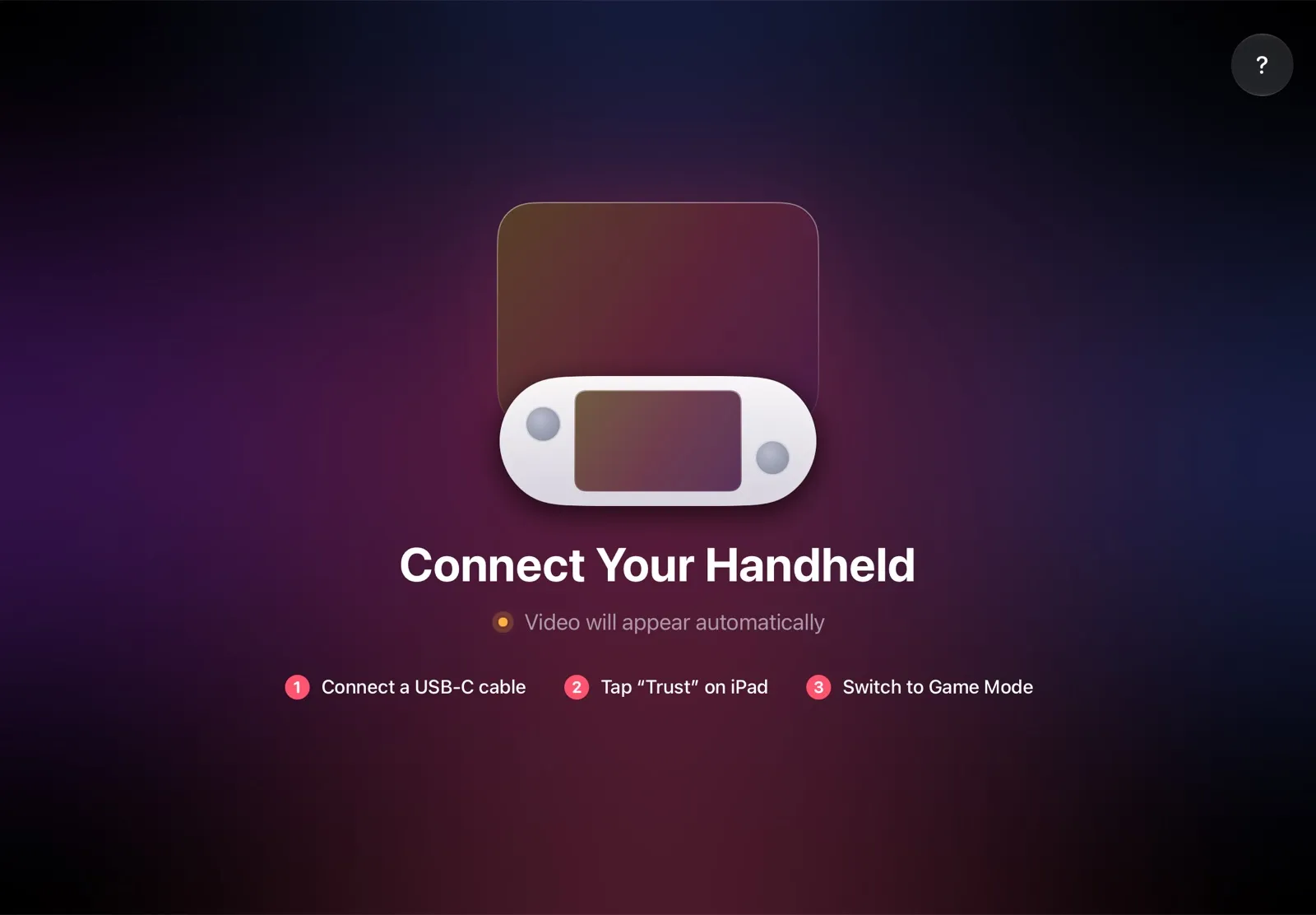
The installation guide has every step, and iPad as a monitor for Steam Deck compares the other ways to use an iPad as the screen.
Why it’s the simplest way:
- Everything gets bigger. Games, menus and subtitles at once, with no buttons to hold and nothing cut off.
- Nothing to buy. The app is free, and the cable is the one you already have.
- The big screen goes with you. The iPad fits in the same bag as the Deck, so you can play on it at a desk, in a hotel or on a train.
- No Wi‑Fi lag. The picture goes over the cable, so a slow or busy network can’t add delay.
- Made for your devices. The Deck detects the iPad’s display and picks the resolution and frame rate for it.
Play on a TV or monitor
The Deck’s USB‑C port carries video (DisplayPort over USB‑C), so a USB‑C to HDMI adapter, or a hub or dock with HDMI, connects it to a TV or monitor. For example, Plugable’s 7‑in‑1 hub is $34.95 and Valve’s Steam Deck Docking Station is $79, US prices as of October 2026. Step by step: how to connect Steam Deck to a monitor or TV.
Downsides:
- You play where the TV or monitor is, and only if it’s free.
- An adapter alone leaves the Deck on battery; a dock is one more box with its own power supply.
Which way should you use?
- Text is too small in most of your games, or you play for hours: TypeScreen with your iPad. Everything gets bigger, and there’s nothing to hold.
- You need to read a small detail now and then: the magnifier, with Steam + L1 or one back button.
- Steam’s menus are hard to read: UI Scale in Settings > Accessibility.
- The game has a text size option: turn it up first.
- You play at home, next to a TV: a USB‑C to HDMI adapter or a dock.
FAQ
How do I zoom in on Steam Deck?
Hold the Steam button and L1. The screen stays zoomed in while you hold them, and the right trackpad or the right stick moves the view.
How do I zoom out or turn off the magnifier?
Let go of L1. If you put Toggle Magnifier on a back button, press that button again. If Steam’s menus look too large rather than zoomed, move UI Scale in Settings > Accessibility back toward Smaller Text.
Can the Steam Deck magnifier stay on without holding buttons?
Yes. In the game’s controller layout, set a spare button to System > Toggle Magnifier: one press zooms in, the next zooms out.
How do I change the font size on Steam Deck?
Game Mode has no separate font size setting. UI Scale in Settings > Accessibility makes Steam’s text and menus bigger, and games have their own text options. In Desktop Mode, change Scale in System Settings > Display & Monitor.
Why is the text so small on Steam Deck?
The screen is 7 or 7.4 inches with 1280 × 800 pixels, and Valve’s Verified test allows text as small as 9 pixels tall: about 1 mm on the Deck’s screen. Games with smaller text get a note about it in their Steam Deck Compatibility details.
What do the scaling settings on Steam Deck do?
Steam Deck scaling settings come in two kinds. UI Scale, in Settings > Accessibility, sizes Steam’s menus. Scaling Mode and Scaling Filter, in the Performance tab of the Quick Access Menu, set how a game running below the screen’s resolution is scaled to fit it.
Does the magnifier work with an Xbox or PlayStation controller?
Yes, when the Deck is docked with a controller: hold the Xbox or PS button and pull the left trigger all the way. On these controllers the shortcut is a toggle, so do the same again to zoom out.
Does the magnifier make text sharper?
No. It enlarges the picture that’s already on the screen, so small text gets bigger but no clearer. For bigger text without zooming, play on a larger screen, such as your iPad with TypeScreen.
Does UI Scale make text bigger in games?
No. It only changes Steam’s own interface. In games, use the game’s text size option, the magnifier or a larger screen.