
Use Steam Deck as Controller While Docked: 3 Ways (2026)
Yes, you can use Steam Deck as controller while docked: when a TV or monitor takes over the picture in Game Mode, only the Deck’s own screen goes black, and its sticks, buttons, trackpads and gyro keep working. The catch is distance. Valve’s dock holds the Deck on a 6-inch cable, so to play from the couch with the Deck in your hands, you need a long cable, Steam Link over your home network, or a big screen that sits next to you: your iPad, with TypeScreen. Here’s each way, what it costs, and how to fix a docked controller that lags or doesn’t respond.
| Way | Deck in your hands | What to buy | Network while you play | Cost |
|---|---|---|---|---|
| TypeScreen with your iPad | yes, with the iPad next to you | nothing | none | free |
| Long cable to the TV | yes, as far as the cable reaches | a USB‑C to HDMI cable, or a hub and an HDMI cable | none | $28.95 for a 6-foot cable |
| Steam Link on the TV | yes, anywhere on your home network | a TV box, if the TV can’t run Steam Link | the same home network as the Deck | free, plus a box if needed |
| Dock and a separate controller | no, it sits in the dock | a dock or hub, and a controller | none | $79 dock, $99 Steam Controller |
US prices as of October 2026: Plugable USB‑C to HDMI cable, Valve Steam Deck Dock, Valve Steam Controller.
Can you use the Steam Deck as a controller while docked?
Yes. Docking doesn’t switch the Deck’s controls off. In Game Mode, the picture moves to the TV and the Deck’s screen goes black, which Valve’s docking guide calls “expected behavior in Gaming Mode.” The Steam Deck controller while docked works as it does in your hands: Valve’s release notes from June 2022 describe a right-trackpad mouse cursor for the built-in browser “when connected to an external display,” and games that “locked onto the Steam Deck controller” with external gamepads connected.
And the Deck’s controls are worth keeping: two trackpads with haptic feedback, a gyro and four grip buttons on the back. What gets in the way is the dock: it holds the Deck upright on a 6-inch cable, and Valve’s dock page suggests playing “on the couch with your favorite wireless controllers.” To hold the Deck while the TV shows the game, connect it another way.
Use Steam Deck as a controller for a TV with a long cable
The simplest wired setup skips the dock: one USB‑C to HDMI cable from the Deck to the TV. The Deck’s port outputs video with DisplayPort Alt Mode, so pick a cable that supports it, such as Plugable’s: 6 feet (1.8 m), up to 4K at 60 Hz, $28.95. Switch the TV to that input and play. Fixes for a black screen are in how to connect Steam Deck to a monitor or TV.
A cable alone leaves the Deck on battery, which Valve rates at 3–12 hours of gameplay on the OLED model and 2–8 hours on the LCD. To charge while you play, plug a hub with USB‑C power passthrough into the Deck, such as Plugable’s 7-in-1 ($34.95), and connect the HDMI cable and the charger to it.
How long can the cable be?
USB‑C to HDMI cables come longer too: Kramer makes its cable in 6, 10 and 15 feet. A passive USB‑C to USB‑C cable that carries video, say to a hub by the TV, is shorter: the USB‑C specification puts the practical length of 5 Gbps cables at 2 m and 10 Gbps cables at 1 m. Active cables reach 5 m, but the specification makes video optional for them, so check that the cable lists DisplayPort Alt Mode. Extension cables, with a plug on one end and a socket on the other, aren’t among the cables it defines.
With the hub next to you instead, the long cable is the HDMI one, and Valve recommends HDMI 2.0 or newer cables. Long runs can still fail at high resolutions: Valve’s docking guide lists “a very long HDMI/DP cable” among the cases where a display may not light up, and suggests External Display Safe Mode in Settings > Display, which picks a low resolution and refresh rate.
Downsides:
- The cable ties you to the TV, and a tug on it pulls on the Deck’s only USB‑C port.
- Charging takes a hub, and then two cables hang off the Deck.
- You play where the TV is, and only when it’s free.
Use Steam Deck as a controller for a TV without a cable: Steam Link
With Steam Link, the Deck runs the game as the Remote Play host and streams it over your home network to Valve’s free app on the TV or on a box plugged into it. The TV shows what the Deck shows, and you keep playing with the Deck in your hands. Valve makes Steam Link for Apple TV, Android TV and Google TV, Amazon Fire TV and Raspberry Pi (Valve); Samsung, LG and Roku TVs need one of those boxes. The setup steps are in how to cast Steam Deck to TV.
The game reads the Deck’s controls directly, but the picture reaches the TV over the network, so what you see lags behind what you press. Valve recommends a wired network for streaming: connect the TV box with Ethernet, and put the Deck in your hands on 5 GHz Wi‑Fi.
Downsides:
- The delay depends on your network. On an ordinary home Wi‑Fi it’s very noticeable, in our tests too; it gets low only on a very fast, stable network.
- The Deck and the TV need one local network, so in practice it’s a home setup.
- If your TV can’t run Steam Link, it’s a box to buy.
The docked controller setup: a dock and a separate controller
If the Deck doesn’t need to be in your hands, this is the setup Valve describes for its dock: the Deck stays by the TV, and you play with a wireless controller. Pair one in Settings > Bluetooth, or plug a wired controller or a wireless receiver into the dock. For trackpads in a separate controller, Valve’s $99 Steam Controller has two, plus a gyro and four buttons on the back; it connects through its Puck receiver, Bluetooth or USB‑C.
Downsides:
- It’s more to buy: the $79 Valve dock or a hub, plus a controller.
- The Deck’s own controls sit in the dock, unused.
Steam Deck controller lag when docked: where it comes from
- The TV. Picture processing adds delay. Valve’s docking guide suggests turning on the TV’s game mode and turning off “motion smoothing” or other image processing, which “may add latency.”
- Bluetooth. Valve’s tips: a clear line of sight to the Deck, which shouldn’t sit behind the TV or in a cabinet; 5 GHz Wi‑Fi or Ethernet through the dock, since Bluetooth works at 2.4 GHz; USB 3 drives, webcams and capture cards kept away from the Deck; no game downloads while you play. If the controller still lags, disconnect and reconnect it, or forget it and pair it again, as Valve’s Steam Deck guide suggests.
- A receiver in the dock. A USB device’s “responsiveness, or latency” can change with the port it’s in, especially next to headsets and other receivers, Valve says. Try another port, or unplug other USB devices.
- The network. With Steam Link, the delay depends on your Wi‑Fi or Ethernet.
The Deck’s own controls over a cable take Bluetooth out of the chain. Steam Deck input lag when docked can also come from the game: at a higher resolution it may run at a lower frame rate, as Steam Deck docked mode explains.
Steam Deck controller not working when docked?
- The game listens to another controller. Many games read only player 1, and with two controllers connected, the one you play with may not hold that slot. With the game running, open the Quick Access Menu (the button with three dots), go to Quick Settings, select Rearrange controller order and move the controller you play with to the top.
- A Bluetooth controller drops out. Follow the tips above and update its firmware: many Xbox controllers “require a firmware update” to work as expected with the Deck, Valve’s docking guide says.
- A wired controller or receiver in the dock stops responding. Try another USB port and unplug other USB devices.
- Nothing works through the dock. Reset it: unplug the Deck, the power supply and the display cables, then plug them back in, as Valve’s guide describes.
How to disable the Steam Deck controller when docked
SteamOS has no switch that turns the built-in controls off, and no setting that reorders controllers on its own when you dock. With a game running and a second controller connected, open Quick Settings > Rearrange controller order and move the Steam Deck Controller to the bottom of the list. Games then see your gamepad as player 1.
Keep the Deck in your hands: use your iPad as the screen
The easiest way to use Steam Deck as controller while docked is not to dock it at all: bring the big screen to the couch instead. TypeScreen, our app, turns your iPad into a wired screen for Steam Deck: the Deck encodes the picture in hardware and sends it to the iPad over one USB‑C cable, the same cable you charge the iPad with. The Deck stays in your hands, and the iPad stands next to you on a table, a desk or a stand.
The game keeps the Deck’s 16:10 shape, with thin bars at the top and bottom of the iPad screen, and a pinch fills the whole screen. On an 11-inch iPad, the picture is about twice the area of the Deck’s own screen; on a 13-inch iPad, close to three times (Steam Deck screen size).
What you need: an iPad with iPadOS 17 or later, a Steam Deck or another SteamOS handheld in Game Mode, and a USB‑C cable.
How to set it up:
- Install TypeScreen on the iPad. It’s free on the App Store.
- Install TypeScreen on the Deck from the iPad app — once, at home, with both devices on Wi‑Fi and the Deck online. The app walks you through turning on Developer Mode and selecting “Pair new host”.
- Connect the cable and tap Trust on the iPad. In Game Mode, your game appears on the iPad automatically.
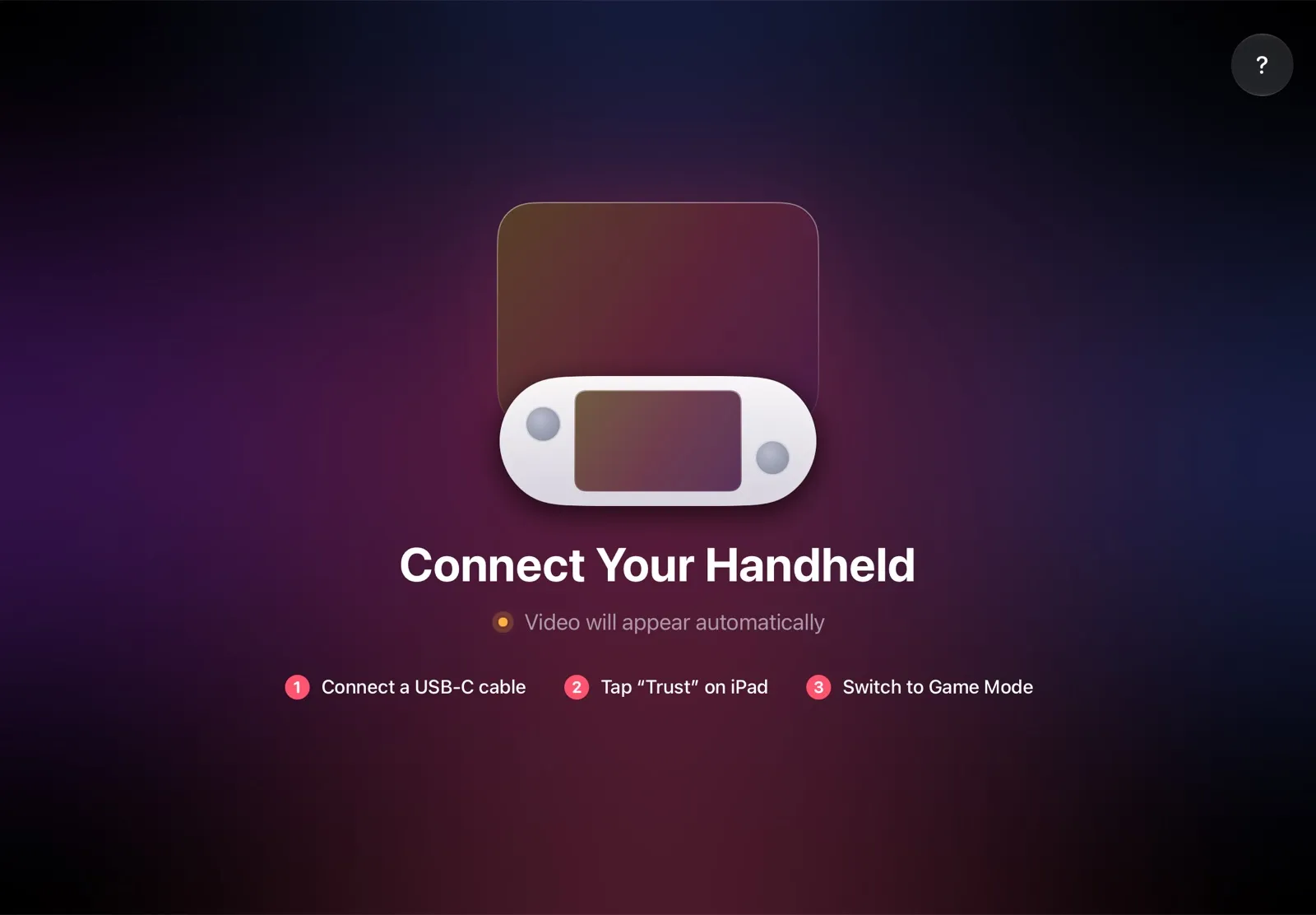
The installation guide has every step, and iPad as a monitor for Steam Deck compares the other ways to use an iPad as the screen.
Why it’s the simplest way:
- The Deck stays in your hands. Sticks, trackpads, grip buttons and gyro, with no second controller to buy.
- No long cable across the room. The iPad sits next to you, so the cable you charge it with is long enough.
- Nothing to buy. The app is free, and the cable is the one you already have: no dock, no TV box.
- No Wi‑Fi lag. The picture goes over the cable, so a slow or busy network can’t add delay.
- The big screen goes with you. The iPad fits in the same bag as the Deck, so you can play on it in a hotel or on a train.
Which way should you use?
- You want the Deck in your hands, and you own an iPad: TypeScreen — a big screen next to you, with nothing to buy.
- You sit a few feet from the TV: a USB‑C to HDMI cable, or a hub with power passthrough so the Deck charges while you play.
- The TV is across the room, and your home network is fast: Steam Link on the TV or a box, with Ethernet for the box.
- You don’t need the Deck’s controls: the dock and a wireless controller.
FAQ
Can you use the Steam Deck as a controller while docked?
Yes. Docking turns off only the Deck’s screen in Game Mode, and its controls keep working. To use Steam Deck as controller while docked from the couch, make your iPad the screen with TypeScreen, connect the Deck to the TV with a long USB‑C to HDMI cable, or stream to the TV with Steam Link.
Can I use my Steam Deck as a controller for my TV?
Yes. Connect it to the TV with a USB‑C to HDMI cable and play with the Deck in your hands. Without a cable, use Steam Link: the Deck streams the game to the app on the TV or a box over your home network, and the delay depends on that network.
Why is my Steam Deck controller not working when docked?
The game may be reading another controller as player 1: with the game running, open Quick Settings > Rearrange controller order and move the controller you play with to the top. If a Bluetooth controller drops out, give it a clear line of sight to the Deck, use 5 GHz Wi‑Fi and update its firmware.
How do I disable the Steam Deck controller when docked?
SteamOS has no switch for it. Move the Steam Deck Controller to the bottom of the list in Quick Settings > Rearrange controller order, which appears while a game is running and a second controller is connected.
Why does my controller lag when the Steam Deck is docked?
Usually it’s the TV’s picture processing, a Bluetooth connection with interference or, with Steam Link, the network. Turn on the TV’s game mode, keep the Deck in view of the controller, use 5 GHz Wi‑Fi and, if it still lags, pair the controller again.
Does a dock cause input lag?
Valve’s FAQ compares docking to plugging a USB‑C hub into a PC. In a dock, delay can come from a wireless receiver: its latency can change with the USB port it’s in, especially next to a headset or another receiver, Valve says. Try another port or unplug other USB devices. The TV’s picture processing and Bluetooth interference can add delay with or without a dock.
Can I use my Steam Deck as a controller for my PC?
Yes, but that’s the reverse setup: the PC runs the game and streams it to the Deck with Steam Remote Play, and you play with the Deck’s controls, as Valve’s FAQ says.
Can I use my iPad as the screen and the Steam Deck as the controller?
Yes. With TypeScreen, the Deck sends the picture to an iPad with iPadOS 17 or later over one USB‑C cable, and you play with the Deck’s own controls. The app is free on the App Store.