
Steam Deck Travel Setup: Hotel TV, Offline Mode, Charging (2026)
A good Steam Deck travel setup answers three questions: where you’ll get a bigger screen, which games will run without internet, and how you’ll keep the Deck charged. Hotel TVs are hit-or-miss, because hotels can lock the HDMI inputs. Valve doesn’t support Steam Link streaming on hotel or train Wi‑Fi with a sign-in page. The big screen that works everywhere is the one you bring: if your iPad travels with you, TypeScreen turns it into the Deck’s screen over one USB‑C cable, with no network while you play.
| Way | What you bring | Network while you play | Cost | Works on a train or in a car |
|---|---|---|---|---|
| TypeScreen with your iPad | the iPad and one USB‑C cable | none | free | yes |
| Hotel TV through an adapter or dock | an adapter or hub, an HDMI cable, the Deck’s charger | none | a $19.99 adapter, a $34.95 hub or the $79 Valve dock | no |
| Steam Link over hotel Wi‑Fi | the Steam Link app on the iPad | the hotel’s Wi‑Fi, which Valve doesn’t support for streaming | free | in practice, no |
| Portable monitor | the monitor, a USB‑C cable, sometimes a power adapter | none | about $130–240 | yes |
| AR glasses | the glasses and their cable | none | $399 on sale (XREAL One) | yes |
US prices as of October 2026; the sources are linked below.
Steam Deck on a hotel TV
When the hotel TV cooperates, the setup is simple: the Deck’s USB‑C port outputs video (DisplayPort Alt Mode), so all it takes is a USB‑C to HDMI adapter or a hub with HDMI, plus an HDMI cable.
How to connect Steam Deck to a hotel TV
- Plug a USB‑C to HDMI adapter, or a hub with HDMI, into the Deck. With a hub, plug the Deck’s charger into the hub’s USB‑C power input, so the Deck charges while you play.
- Connect the HDMI cable to a free HDMI port on the TV.
- Switch the TV to that input. TVs often have several HDMI inputs, Valve notes in its docking guide, so you may need to cycle through them.
- Wake the Deck. In Game Mode, the picture moves to the TV and the Deck’s own screen goes black, which Valve says is expected.
If the TV stays black, unplug the Deck, turn on External Display Safe Mode in Settings > Display and plug it back in. More fixes and settings: how to connect Steam Deck to a monitor or TV and Steam Deck docked mode.
Hotel TV with a locked HDMI input
Hotel TVs are built so the hotel can lock them down. Samsung’s hospitality TV datasheet says the hotel can disable HDMI access, and then the HDMI source “will not be accessible to guests”; LG lists Hotel Mode, Lock Mode and Port Block in its hotel TV specs. If the TV won’t switch to HDMI, ask the front desk.
Picture cut off at the edges
If the edges of the picture are missing, the TV is overscanning: zooming in slightly. On the TV, choose LG’s Just Scan, which LG recommends for game consoles, or Samsung’s Fit to Screen. If the hotel locked the picture menu, fix it on the Deck: with the TV connected, open Settings > Display, turn off Automatically Scale Image and move the slider below it toward Smaller until the whole picture fits.
For less lag, Valve recommends the TV’s game mode, with “motion smoothing” and other processing off, since they “may add latency.” On a hotel TV, that menu may be locked too: Samsung’s datasheet describes menu lock-outs for hoteliers.
Downsides:
- The hotel may have locked the HDMI inputs or the picture menu.
- You play where the TV is, often across the room from the bed: sitting back takes a long HDMI cable or a separate controller.
- An adapter or hub, an HDMI cable and the charger are more things to pack.
Do you need a Steam Deck travel dock?
For a hotel TV, a small hub is the travel dock: it adds HDMI and a USB‑C power input, so the Deck charges while it drives the TV. Valve’s docking guide adds that some docks “reserve” part of the power for devices plugged into them, which can bring up a “slow charge” warning.
| Price | Weight | Charges the Deck | Also has | |
|---|---|---|---|---|
| Plugable USB‑C to HDMI adapter | $19.99 | 16 g | no | HDMI only |
| Plugable 7‑in‑1 hub | $34.95 | 105 g | yes, 100 W pass-through | 3 USB‑A ports, SD and microSD slots |
| Valve Steam Deck Dock | $79 | about 120 g, plus its power supply | yes, power supply included | DisplayPort, Ethernet, 3 USB‑A ports |
US prices as of October 2026, from the Plugable and Steam stores; specs from Plugable and Valve.
With your iPad as the screen, you need no dock at all.
Steam Deck hotel Wi‑Fi and Steam Link
You can use hotel Wi‑Fi for downloads: when a network needs a sign-in, the Deck says “The network requires additional login information” and offers a Log in button. Streaming is another matter. Steam Link uses Remote Play, and Valve’s network guide says Remote Play “is not supported on public networks,” guest networks, “networks with gateway portals or which require a log-in,” or networks with client isolation. A hotel TV with a Cast button won’t help either: SteamOS can’t cast, as cast Steam Deck to TV explains.
Downsides:
- Valve says such networks “will prevent you from connecting in most cases.”
- The delay depends on the network: on an ordinary Wi‑Fi it’s very noticeable.
- Wired workarounds take adapters and network settings: Steam Link without Wi‑Fi covers them.
A portable monitor
A portable monitor is another screen you can pack: usually 15 to 16 inches, connected with one USB‑C cable. The 16.1‑inch Arzopa Z1FC is $129.99 on sale and weighs 1.72 lb. Plugable’s 15.6‑inch monitor is $239.95, and Plugable says it works with the Steam Deck but “requires an external power connection.”
Downsides:
- It’s one more device to buy and carry.
- Some models need their own power adapter with the Deck.
If you already travel with an iPad, compare first: iPad vs portable monitor.
AR glasses
AR glasses plug into the Deck’s USB‑C port, and XREAL lists the Steam Deck among devices that connect directly. They show the game on a large virtual screen in front of your eyes, with no network involved. For example, XREAL One is $399 on sale, down from $499, in XREAL’s US store as of October 2026.
Downsides:
- The XREAL One costs $399 on sale.
- Only the person wearing them sees the game.
Steam Deck on a train or in the car
There’s no TV here and no network you can count on, so the screen has to come with you.
Steam Deck on a train
Put the iPad on the tray table or in its stand, hold the Deck and connect the cable. With TypeScreen, the game appears on the iPad, and the train’s Wi‑Fi doesn’t matter: nothing goes over it. Steam Link on train Wi‑Fi meets the same limits as in a hotel.
Steam Deck in the car
For passengers, the setup is the same: the iPad in a headrest mount or a seat-back holder, the Deck in your hands, one cable between them. Valve’s safe storage range for the Deck tops out at 60 °C (140 °F), according to its Steam Deck guide, so take the Deck with you when you park in the sun.
The simplest Steam Deck travel setup: your iPad as the screen
TypeScreen, our app, turns your iPad into a wired screen for Steam Deck: the Deck encodes the picture in hardware and sends it to the iPad over one USB‑C cable, the same cable you charge the iPad with. There’s no network in between while you play, and you keep playing with the Deck’s own controls. iPads range from 8.3 inches (iPad mini) to 13 inches (iPad Air and iPad Pro); on an 11‑inch iPad, the picture is about twice the area of the Deck’s own screen, as Steam Deck screen size shows.
What you need: an iPad with iPadOS 17 or later, a Steam Deck or another SteamOS handheld in Game Mode, and a USB‑C cable.
How to set it up:
- Install TypeScreen on the iPad. It’s free on the App Store.
- Install TypeScreen on the Deck from the iPad app — once, at home, with both devices on Wi‑Fi and the Deck online. The app walks you through turning on Developer Mode and selecting “Pair new host”.
- Connect the cable and tap Trust on the iPad. In Game Mode, your game appears on the iPad automatically.
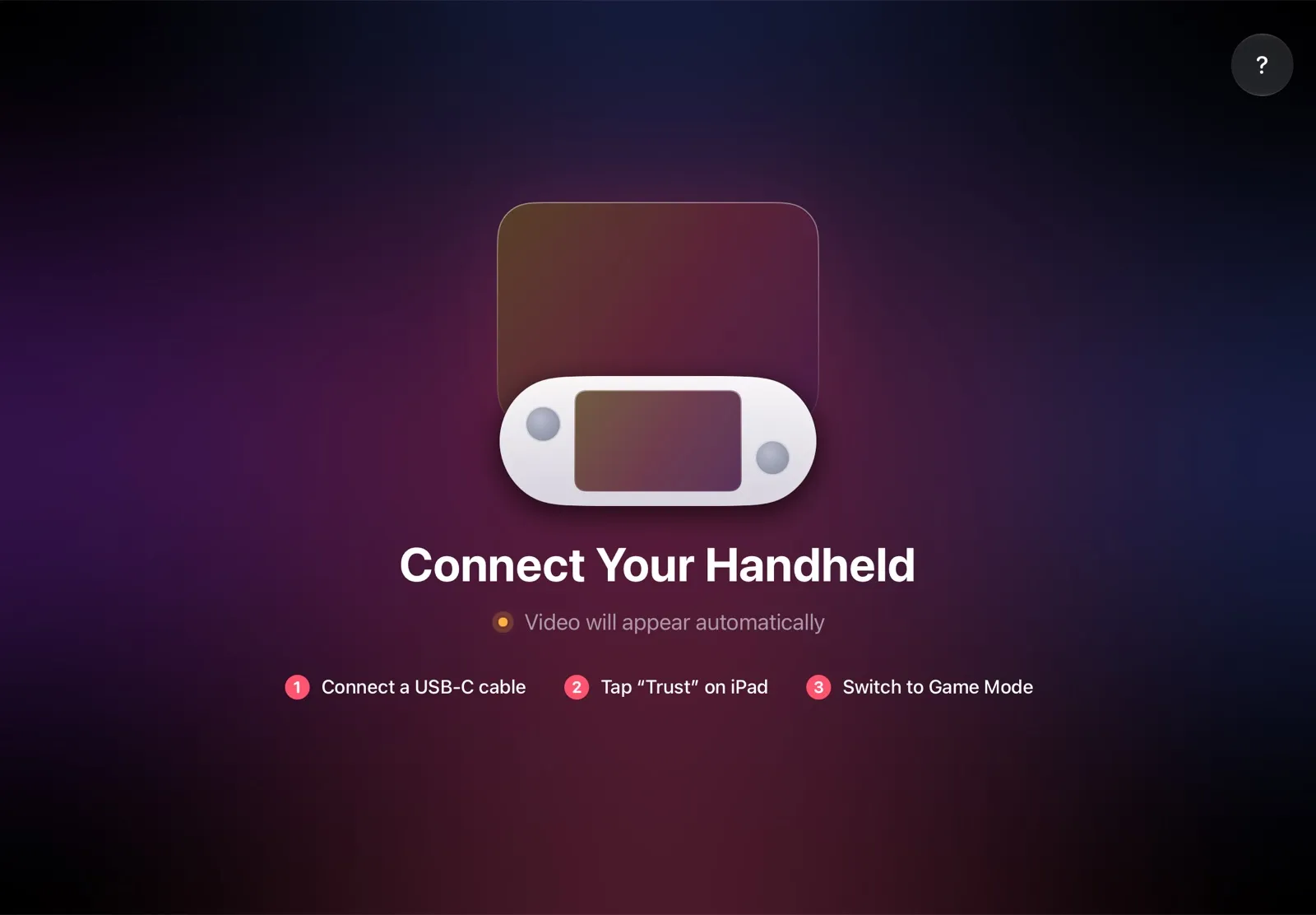
The installation guide has every step, and iPad as a monitor for Steam Deck compares the other ways to use an iPad as the screen.
Why it’s the simplest travel screen:
- No network while you play. In a hotel, on a train or in a car, the picture goes over the cable: no Wi‑Fi to sign in to, and no Wi‑Fi lag.
- Nothing extra to pack. The app is free, and the cable is the one you already have: no TV, no hub, no HDMI cable.
- It plays where you sit. On the desk, the tray table or the bed, with the Deck in your hands.
- Made for your devices. The Deck detects the iPad’s display and picks the resolution and frame rate for it.
Steam Deck offline mode: set it up before you leave
Valve’s FAQ says that once a game is installed, “you can play while Steam Deck is offline unless the game requires an internet connection”; downloads and online multiplayer still need one. Before you leave, while you’re online:
- Finish downloads and updates for the games you’ll play.
- Launch each one once. Valve’s Offline Mode guide says most games need “an initial start-up while connected to the Steam Network,” and games that require a connection or “use an external launcher” won’t work offline.
- If you’ll be on spotty Wi‑Fi, open Settings > Internet, scroll down to Advanced Settings and select Enter Offline Mode. The button works only while the Deck is online, running games must be closed first, and Offline Mode signs you out of friends and chat. If the button is grayed out, the Deck has no internet connection, and installed games still play: Valve says the disabled button “does not in any way affect your ability to play games” without one.
Saves you make offline reach Steam Cloud only after the Deck goes back online. Before you play the same game on another PC, take the Deck online so its saves upload first: Valve’s Steam Cloud guide warns that playing in Offline Mode “is very likely to cause a conflict.”
Charging Steam Deck on the road: power banks and car chargers
| Steam Deck OLED | Steam Deck LCD | |
|---|---|---|
| Battery | 50 Wh | 40 Wh |
| Valve’s estimate | 3–12 hours of gameplay | 2–8 hours of gameplay |
| Charger | 45 W, USB‑C PD 3.0 | 45 W, USB‑C PD 3.0 |
| Charger cable | 2.5 m | 1.5 m |
From Valve’s tech specs for the OLED and LCD models.
- Power banks and car chargers need USB‑C Power Delivery. The Deck “uses USB Power Delivery and does not support Fast Charging or Quick Charge specifications,” Valve says in its Steam Deck guide. A 45 W USB‑C PD output matches Valve’s own charger; with less, the Deck charges more slowly.
- Capacity. Compare the power bank’s watt-hours with the Deck’s 50 or 40 Wh. Given only mAh? At the usual 3.6–3.7 V, 20,000 mAh is about 72–74 Wh, before conversion losses.
What to pack for your Steam Deck travel setup
- The Deck and its 45 W charger.
- Your iPad, a stand or case that holds it up, and the USB‑C cable that came with it, with TypeScreen installed on both devices at home.
- For a hotel TV: a hub with HDMI and a USB‑C power input, an HDMI cable and, to sit back, a Bluetooth controller.
- A power bank or car charger with a 45 W USB‑C PD output.
- Your games, downloaded and launched once, and a microSD card for more of them.
Which Steam Deck travel setup should you use?
- You travel with an iPad: TypeScreen. The screen is already in your bag, and it works in a hotel, on a train and in a car without a network.
- Your hotel room has a TV you can use: a hub with HDMI and power pass-through, the Deck’s charger and an HDMI cable.
- No iPad: a portable monitor, or AR glasses for Steam Deck if you play alone; see iPad vs portable monitor first.
- You want Steam Link: keep it for home, on a fast network you control.
FAQ
How do I connect my Steam Deck to a hotel TV?
Plug a USB‑C to HDMI adapter or a hub into the Deck, run an HDMI cable to the TV and switch the TV to that input. If the hotel has locked the inputs, ask the front desk, or play on your iPad with TypeScreen.
Why is the Steam Deck picture cut off on the hotel TV?
The TV is overscanning. Set its picture size to Just Scan (LG) or Fit to Screen (Samsung). If that menu is locked, turn off Automatically Scale Image in the Deck’s Settings > Display and move the slider toward Smaller.
Can I use Steam Link on hotel Wi‑Fi?
Usually not. Valve says Remote Play, which Steam Link uses, isn’t supported on public or guest networks, networks with a sign-in page, or networks with client isolation. TypeScreen needs no network while you play.
How do I put Steam Deck in offline mode?
While the Deck is online, close any running game, open Settings > Internet and select Enter Offline Mode. Launch the games you’ll play once before that: Valve says most need a first start online.
Can you play Steam Deck on a train?
Yes: it’s a handheld, and installed games play offline unless they need an internet connection. For a bigger screen, TypeScreen sends the game to your iPad over a USB‑C cable, with no network involved.
What wattage power bank do I need for a Steam Deck?
A 45 W USB‑C Power Delivery output matches Valve’s own charger; with less, the Deck charges more slowly. It has to be USB‑C PD, since the Deck doesn’t support Quick Charge. The battery is 50 Wh on the OLED and 40 Wh on the LCD model.
How long does the Steam Deck battery last?
Valve estimates 3–12 hours of gameplay on the Steam Deck OLED and 2–8 hours on the LCD model, depending on the game.
Do I need a Steam Deck travel dock?
Only for a TV: a small hub with HDMI and USB‑C power pass-through lets the Deck charge while you play on the TV. With TypeScreen, your iPad needs no dock, just one USB‑C cable.